
It is 9:40 p.m., the quarterly review is at 10 tomorrow, and all you have is a Word document of notes, a spreadsheet export, and a vague memory of the slide template marketing sent around last year. Building twelve slides by hand means two hours of dragging text boxes and fighting with bullet indentation. Most professionals have been in that exact spot more than once.
AI presentation tools exist for that evening. You give them a prompt, a document, or a rough outline, and they hand back a structured deck with layouts, headings, and placeholder visuals you can edit. None of them will think for you. The good ones save the formatting grind and give you a first draft solid enough that the remaining hour goes on the content, which is where it should go.
Don’t want to miss the best from TechLatest?
Set us as a preferred source in Google Search
and make sure you never miss our latest.
The ten tools I point colleagues to, ranked roughly by how I would recommend them for general business use, differ a lot: some live inside PowerPoint or Google Slides, some are standalone web apps, and a couple are better suited to design-heavy decks than to quick internal updates. Pick based on where your slides need to end up.
1. Quillbot AI Presentation Maker
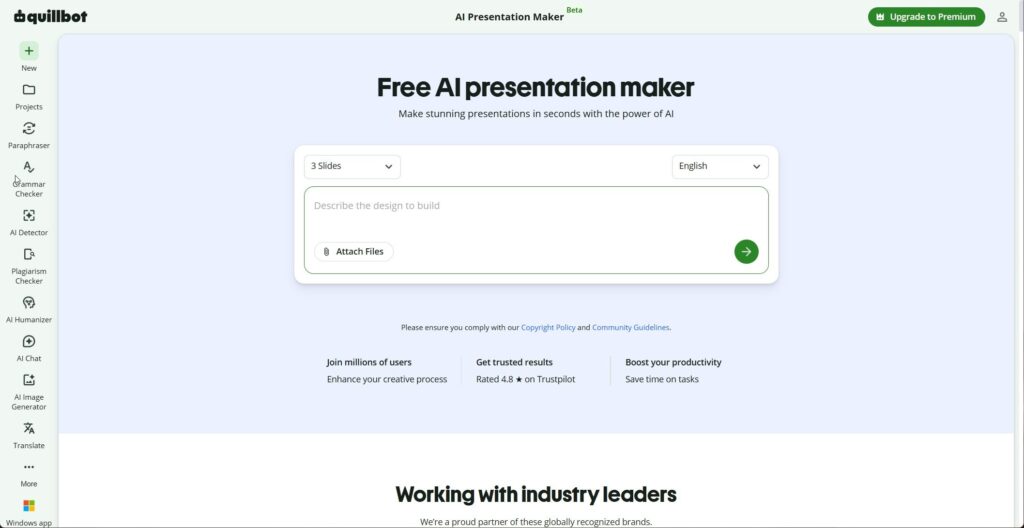
Quillbot is better known for its paraphraser, grammar checker, and summarizer, and that background shows in how its presentation tool behaves: it is good at taking messy written material and turning it into clean slide text. If your starting point is usually a document rather than a blank page, it is the ai presentation generator I would try first.
The workflow is simple. You can type a prompt describing the presentation, paste in an outline or notes, or upload a file (it accepts PDF, Word, PowerPoint, and image files). You can tell it how many slides you want and what kind of presentation it is (a pitch, a project update, a lesson, a proposal), which shapes how it structures the content. It then produces a deck with slide titles and body text, and you pick from layout and theme options.
Editing happens in the browser. You can rewrite titles and content directly on each slide, reorder slides, delete the ones you do not need, and add new ones. There are basic image editing tools too (crop, background removal, filters), which saves a trip to a separate editor when a product screenshot needs tidying. Teammates can be invited to edit the same deck at the same time.
Exports cover the formats people actually need: PPTX if you want to finish in PowerPoint, PDF for sending to clients, and image formats (JPG, PNG, GIF) if you want individual slides for a LinkedIn post or a chat message.
Where it fits best:
- Turning a written report, meeting notes, or a long email into a short deck.
- Professionals who already use Quillbot for writing and want everything in one place.
- Quick internal updates where structure and readable text matter more than custom design.
It has a free option, and Premium removes limits on the number of presentations and speeds up generation. The writing tools sitting alongside it are a practical bonus. When a slide’s text comes out wordy, running it through the paraphraser in shorter mode usually tightens it faster than rewriting by hand.
A prompt that works well for me:
“Create an 8-slide project update for senior leadership. The audience has 10 minutes. Cover: status vs. plan, two risks with mitigation, budget position, and decisions needed. Use short bullet points, no more than 4 per slide.”
The more specific the audience and constraint, the less editing you do afterward.
Uploading a file changes the job a little. Say you drop in a six-page Word report on a CRM migration. A reasonable outline to expect and to steer toward if the first pass wanders looks like this:
- Title: CRM migration, where we are in week 6
- What we set out to do (scope in one line, three goals)
- Progress against the plan (done, in progress, not started)
- Data quality issues found during import
- Two risks for next month, each with an owner
- Budget: spent vs approved
- What we need from this group (two decisions)
- Next checkpoint and date
If the generated deck merges slides 4 and 5, or invents a slide on “lessons learned” that the report never covered, regenerate with a tighter prompt or just fix it by hand in the editor. Both are quick. What I like about starting from a document is that the facts come from your own report, so the editing pass is about trimming and ordering rather than chasing down where a number came from.
One small habit: after generating, read only the slide titles in sequence. If they make sense as a short story without the body text, the deck is in good shape.
Read: Sourcing Platform Graphics: Testing Ouch Against Custom Pipelines
2. Gamma
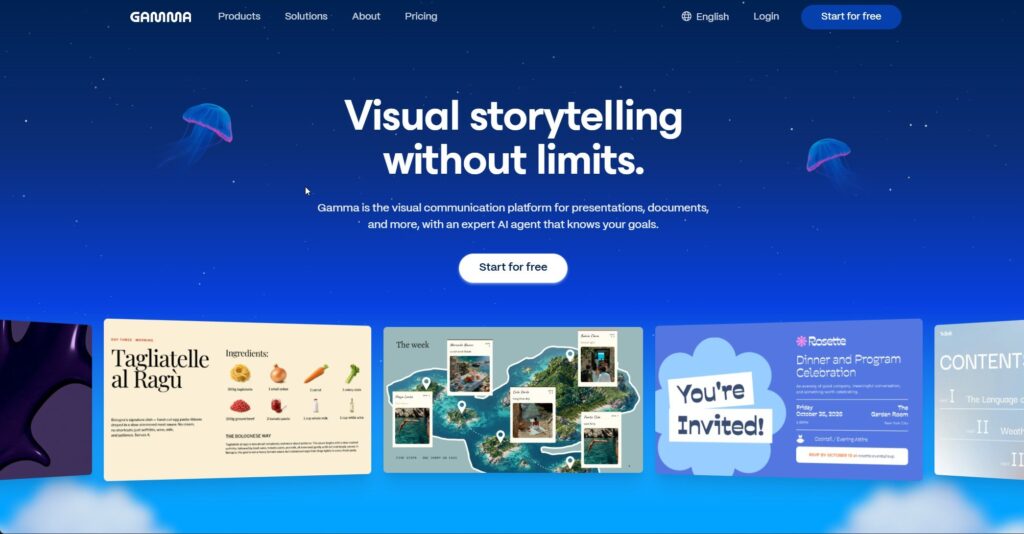
Gamma generates presentations, documents, and simple web pages from a prompt or pasted text. Its decks use a card-based format that scrolls nicely on screen, and the default designs look modern without much fiddling.
You can export to PowerPoint or PDF, though some layouts shift a little on export, so check the file before presenting from it. People who share decks as links rather than files tend to like it most, and it is a good choice when the “presentation” is really a one-pager that will be read on a phone rather than projected in a meeting room with a clicker and a slightly too warm projector.
3. Microsoft Copilot in PowerPoint
If your company runs on Microsoft 365 and has Copilot licenses, this is the path of least resistance. Copilot can draft a presentation from a prompt or from an existing Word document, add slides, and summarize a long deck someone sent you.
It works inside PowerPoint, so your corporate template and the files you already have stay where they are. Access depends on your organization’s licensing, which is the main limitation; many people simply do not have it switched on.
4. Canva
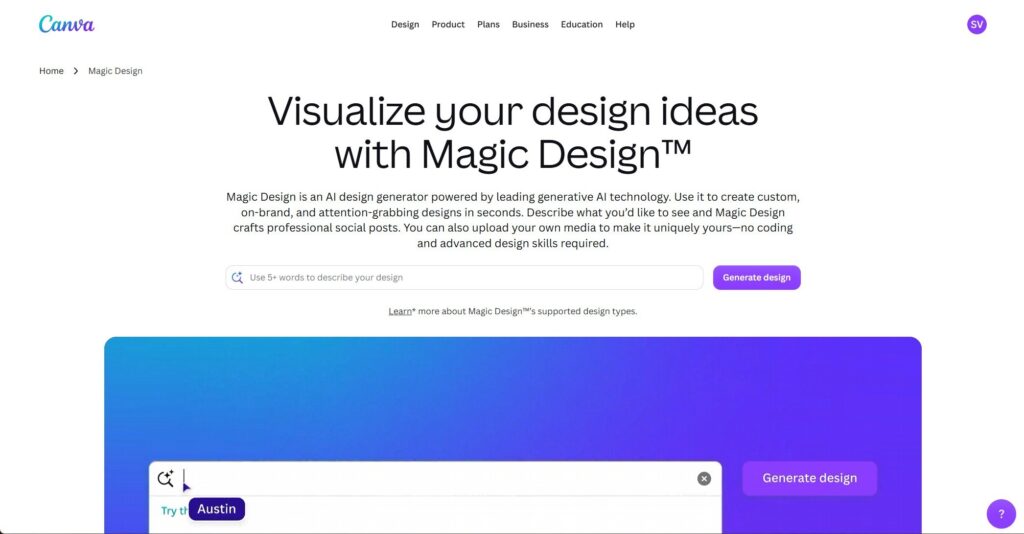
Canva’s Magic Design can generate a presentation from a short prompt, and the result drops you into Canva’s normal editor with its huge template and asset library. It suits decks where visuals carry the message: marketing pitches, event recaps, and social-ready slides. The text it writes is fine, not remarkable. Teams that already use Canva for brand assets get the bonus of brand kits applying automatically.
5. Beautiful.ai
Beautiful.ai has been around longer than most tools on this list. Its main strength is smart slide templates that adjust spacing and alignment as you add content, so slides keep looking tidy even after heavy editing. It also has an AI feature that generates slides from a prompt. Good for sales and consulting teams who want consistent, polished decks without a designer.
6. Google Slides with Gemini
For Google Workspace users with Gemini enabled, Slides can generate images, help write slide content, and create new slides from a prompt inside a deck you are already building. It is less of a full deck generator than the standalone tools and more of an assistant sitting in the side panel. If your team collaborates in Google Drive all day, that may be exactly what you want.
7. Plus AI
Plus AI works as an add-on for Google Slides and PowerPoint. You describe the presentation, it builds the slides inside your existing app, and you can then use it to rewrite or reformat individual slides. Because the output is native Slides or PowerPoint, there is no export step and no layout surprises.
8. Pitch
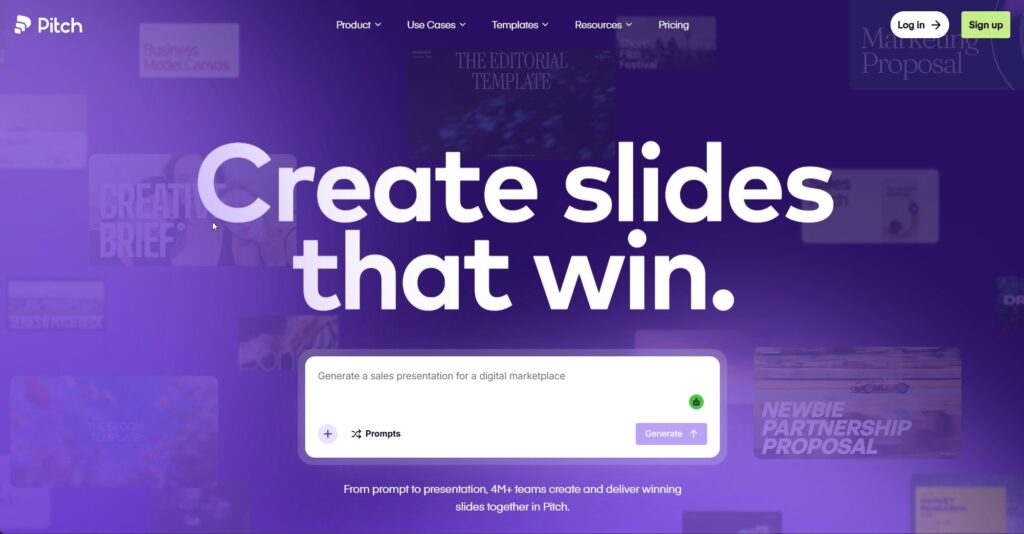
Pitch is a collaborative presentation tool aimed at startups and fast-moving teams. Its AI generator produces a first draft deck from a prompt, and the real draw is the collaboration layer: comments, assigned slides, version history, and presentation analytics when you share a link. Better for teams than for solo users.
Read: From Personal Prompts to Team Playbooks: Making Good AI Work Repeatable
9. Prezi AI
Prezi’s zooming, non-linear canvas has always split opinion. Prezi AI can turn text into a presentation in that style. If you present live to an audience and want movement between topics, it is worth a look. For a board pack that gets read as a PDF, skip it.
10. SlidesAI
A Google Slides add-on that turns pasted text into slides. Plain and quick.
Quick comparison
| Tool | Where it runs | Starts from | Best for |
|---|---|---|---|
| Quillbot | Web app, exports PPTX/PDF/images | Prompt, notes, uploaded files | Turning documents into clear slides fast |
| Gamma | Web app | Prompt or pasted text | Link-shared, modern-looking decks |
| Copilot in PowerPoint | Inside PowerPoint | Prompt or Word doc | Microsoft 365 organizations |
| Canva | Web and desktop app | Prompt | Visual, brand-heavy decks |
| Beautiful.ai | Web app | Prompt or templates | Consistent sales and consulting decks |
| Google Slides + Gemini | Inside Slides | Prompt within a deck | Workspace teams |
| Plus AI | Add-on for Slides/PowerPoint | Prompt | Native output, no export step |
| Pitch | Web and desktop app | Prompt | Collaborative team decks |
| Prezi AI | Web app | Text | Live, non-linear talks |
| SlidesAI | Add-on for Slides | Pasted text | Fast text-to-slides |
Getting a usable first draft (whichever tool you choose)
The quality gap between a vague prompt and a specific one is bigger than the gap between most of these tools. A few habits make a real difference.
Give it the audience and the time limit. “Make a presentation about our Q3 results” produces generic slides. “Make a 6-slide summary of Q3 results for the sales team, 5-minute slot at the Monday meeting, focus on what changed in the mid-market segment” produces something close to finished.
Feed it your material, not just a topic. Upload or paste the report, the notes or the email thread. When an ai presentation generator works from your actual content, you spend your time trimming rather than fact-checking invented numbers.
Ask for fewer words. Every tool on this list tends to overfill slides on the first pass. Add “maximum 4 bullets per slide, maximum 10 words per bullet” to the prompt.
Write the takeaway into each slide title. “Revenue” is a label. “Mid-market revenue grew while enterprise stayed flat” is a takeaway. You can ask the tool to do this, though it often needs a manual pass.
Here is a before/after of a single generated slide to show the kind of edit that usually remains:
Before (generated): > Customer Feedback Overview > – Customers have provided a wide range of feedback across multiple channels > – Overall sentiment has been generally positive with some areas for improvement > – Key themes include usability, pricing and support responsiveness > – The team is actively reviewing feedback to identify opportunities
After (edited): > Support response time is the top complaint this quarter > – 3 of the top 5 themes mention slow replies > – Pricing complaints dropped after the plan change > – Next step: trial weekend coverage in November
The second version uses the same data and actually tells the room something.
Read: Best Image-to-Video Tools Compared for Shopify Ad Creative
Mistakes that waste the time you saved
Presenting the first draft. Generated decks often have one slide that repeats another, or a generic “Conclusion” slide that adds nothing. Click through once, top to bottom, before anyone else sees it.
Not checking numbers. If the tool generated any figure you did not give it, delete it or verify it. This one has embarrassed more people than bad design ever has.
Fighting the tool’s design. If you need your company’s strict template, generate the content, export to PPTX, and paste the text into your template. That is often quicker than trying to make a web tool reproduce corporate brand guidelines exactly.
Ignoring speaker notes. Several of these tools can draft notes. Even rough notes stop you reading the slides aloud.
Short answers to common questions
Are AI-generated decks good enough for clients? As a first draft, yes. Before sending, rewrite titles as takeaways, verify every number and remove any slide you cannot explain out loud.
Can I keep my company template? Inside PowerPoint or Google Slides tools (Copilot, Gemini, Plus AI), mostly yes. With web tools, export to PPTX and move content into the template, or set up a brand theme where the tool supports it.
Which one should I try first? Start with whatever runs where your slides need to end up. If you mostly turn documents into decks and want export flexibility, Quillbot is a sensible first test.
Before tomorrow’s meeting
Take one deck you built by hand recently and regenerate it from the same source notes in two of these tools. Compare how much editing each version needs to reach the quality of the original. That twenty-minute test will tell you more about fit than any feature list, and you will walk into the next late-night deadline already knowing which tab to open.
Enjoyed this article?
If TechLatest has helped you, consider supporting us with a one-time tip on Ko-fi. Every contribution keeps our work free and independent.
Support on Ko-fiDirectly in Your Inbox