Highlights
- HP Ink Tank 316 is an efficient and cost-effective home printer aimed at small offices.
- It is important to have the correct drivers for your operating system so that the printing process runs smoothly.
- Luckily, we are here with step-by-step guide to help you download and install the HP Ink Tank 316 driver.

You might have an HP Ink Tank 316 printer at home that you use for its efficient printing, scanning, and copying features at a low cost per page.
But to get the most out of your printer, you have to have the right driver — software that allows your computer and printer to talk to each other.
Don’t want to miss the best from TechLatest?
Set us as a preferred source in Google Search
and make sure you never miss our latest.
Whether you are setting up your device for the first time, troubleshooting a stubborn connection, or you’re just looking to keep things running smoothly, getting the appropriate HP Ink Tank 316 driver and software downloads is important.
In this guide, we will help you get the official driver, step-by-step installation on Windows, Linux, and macOS, plus expert recommendations to avoid some common traps.
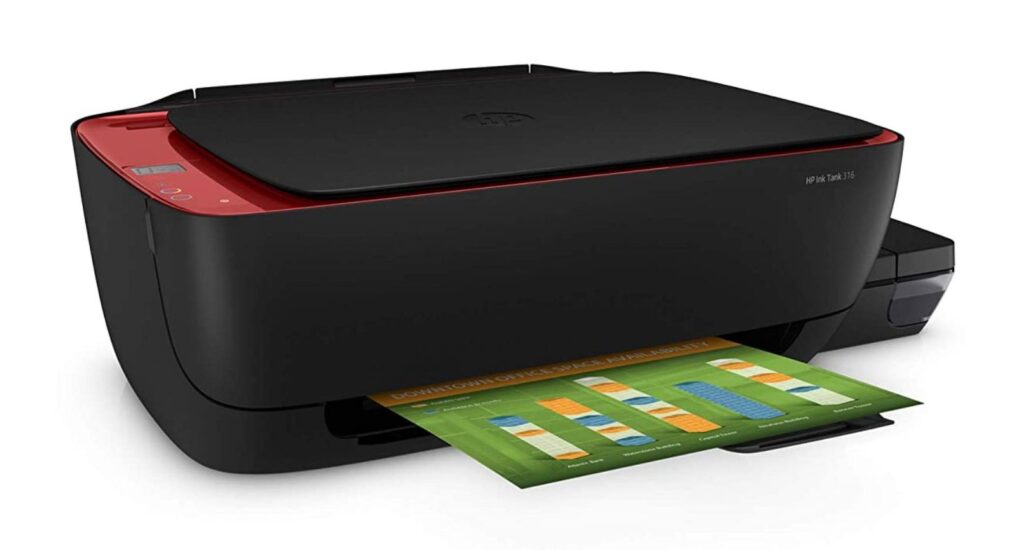
What is the HP Ink Tank 316 Driver? Why Does It Exist?
The HP Ink Tank 316 driver is essentially software that will connect your computer and your HP printer.
Regardless of whether you run Windows, macOS, or Linux on your PC, this driver makes your system capable of sending print commands to the printer and collecting data from its scanner and maintenance functions, even if they include new firmware versions.
Put simply, it interprets your digital instructions and turns them into the physical printing, scanning, or copying actions, all while ensuring stability and functionality when OS updates.
Benefits of Keeping Your HP Ink Tank 316 Driver Updated
Some users just forget all about driver updates, believing that their printer will continue to ‘just work’ forever. In fact, the updates of your driver have many advantages:
- Improved Compatibility: Assures that your printer remains compatible with these OSs when updated.
- Error Fixes: Fixes problems such as print queue errors, disappearing scan options, or USB recognition issues.
- Performance Boosts: Improve print speeds and color accuracy and reduce print artifacts.
- Security Patches: Shields you from vulnerabilities that may harm your network or device.
- New Features: Updates may come with better maintenance tools or additional print settings.
Supported Operating Systems & System Requirements
Windows:
- Windows 11
- Windows 10 (32-bit & 64-bit)
- Windows 8.1 (32-bit & 64-bit)
- Windows 8 (32-bit & 64-bit)
- Windows 7 (32-bit & 64-bit)
- Windows Vista (32-bit & 64-bit)
macOS:
- macOS Catalina (10.15)
- macOS Mojave (10.14)
- macOS High Sierra (10.13)
- macOS Sierra (10.12)
- OS X El Capitan (10.11)
- OS X Yosemite (10.10)
- OS X Mavericks (10.9)
- OS X Mountain Lion (10.8)
- OS X Lion (10.7)
- OS X Snow Leopard (10.6)
- OS X Leopard (10.5)
Linux:
- Linux 32-bit
- Linux 64-bit (via HPLIP package)
Where to Safely Download the Driver
Only download from HP’s official support site:
- For those using the Ink Tank 316 (in the 310 series), you can download the Full Feature Software and Drivers from HP’s driver center, which bundles everything into a single file, including printing, scanning, and device utilities. It is the safest and most reliable, with no malware or old files.
- First-time installation? Keep an eye out for the hands-on Printer Setup Guide from HP, which should help you unpack, set up ink, load paper, and install software.
How to Install the HP Ink Tank 316 Driver on Windows
- Visit HP’s support page and select your operating system to download the “Full Feature” package.
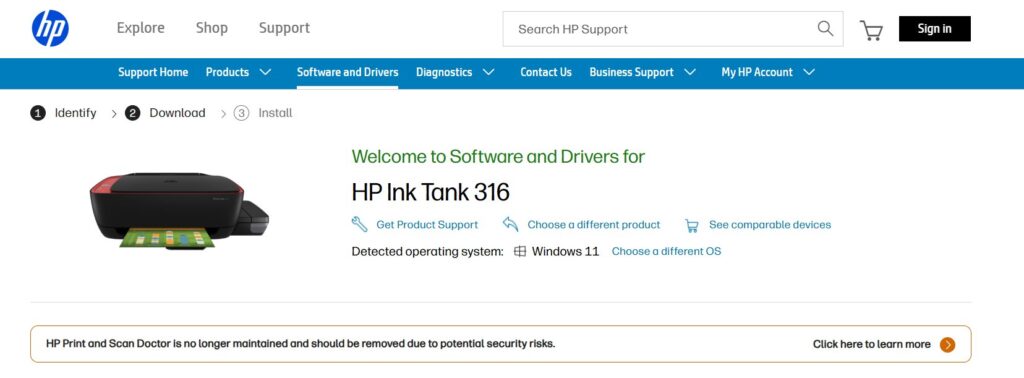
- Is the printer connected by USB cable to your computer? Disconnect that before installing the driver.
- Double-click the downloaded file and allow it to run with administrator privileges.
- Then, it will take you through the license agreements before installing the software, amongst other optional settings.
- Do not plug in the USB cable until you are told to by the installer.
- Now print a test page and try scanning to see if the issue is resolved.
Troubleshooting tip: If the installer fails, remove any old HP printer software using Programs & Features and then reboot the computer before running the installer.
Driver Capabilities:
Installing the Full Feature driver package gives you access to:
- High-quality scanning, with WIA/TWAIN support
- Printer maintenance utilities (cleaning, alignment, calibration)
- Enhanced print fidelity, system stability, and compatibility
- Tools to monitor ink levels, even in USB-connected printers
Installing on macOS: Be Prepared
The macOS experience with the Ink Tank 316 (a USB-only model) can be kind of tricky:
- Try HP Easy Start or go to System Preferences > Software Update and look for driver updates.
- If macOS can’t find a suitable driver, sharing the printer on your network from a standard Windows or Linux PC is probably the best alternative.
Platform-Specific Tips
Windows
- The most performing user experience with the Full Feature package.
- Diagnostics and ink monitoring come through the HP Smart app for all USB-only models.
- All firmware is turned into the driver package, so no need to download firmware separately from the internet for HP.
Linux
- This makes printing and scanning easier to integrate with HPLIP.
- The whole installation on the command line through hp-setup can also be done quickly.
- According to user feedback from our community, HP provides good and reliable support for its printers on Linux.
macOS
- Unfortunately, not all USB-only printers are supported, and that’s especially the case on modern macOS releases.
- HP Easy Start might work on older versions; otherwise, network sharing from another PC is a reliable backstop.
Frequently Asked Questions (FAQs)
Can I use the HP Ink Tank 316 without installing a driver?
With certain OS versions, basic printing could potentially work, but without the printer driver, it would not be possible to scan or initiate copy controls and also some maintenance features.
Is the driver the same for HP Ink Tank 310, 311, and 316 models?
Yes, those models are in the same series and use all of the same drivers.
How often should I update my driver?
Check every 3–6 months or after any major OS update.
What’s the safest source for the driver?
HP’s official support site or the official HPLIP repository for Linux.
Conclusion
HP Ink Tank 316 is a simple and everyday printer that offers great print quality, but it will be in a bloodbathif you have not installed the proper driver.
Once downloaded, the official driver package you can get from the HP support page, with an appropriate version for your operating system, and perform according to their installation rules.
This way, you can benefit from everything that the printer has to offer, like high-resolution printing or fast scans and copies.
Besides maintaining the compatibility of a printer with changes in the system, regular driver updates better stabilize and correct errors, as well as enhance performance.
The key to using the HP Ink Tank 316 with a working hardware setup is reading a guide for your particular operating system, whether it be Windows, macOS, or Linux.
Enjoyed this article?
If TechLatest has helped you, consider supporting us with a one-time tip on Ko-fi. Every contribution keeps our work free and independent.
Support on Ko-fiDirectly in Your Inbox