
You open the lid, wait for the fan to settle, watch the battery percentage drop, and wonder whether this is the week to stop patching up the same machine. That is the repair-or-replace decision most laptop owners face in 2026: not a dramatic breakdown, but a series of small failures that make everyday work feel less certain.
Security support makes the decision less forgiving than it used to be. Millions of 3–5-year-old laptops now sit between three competing choices: repair, replace, or keep running unpatched software. The last option is not a serious long-term plan. Yet replacing too early is wasteful too, especially when the real problem is often software bloat, a tired battery, or a worn SSD rather than a fundamentally finished machine. Retailers have obvious incentives to make “buy new” feel inevitable, so the useful question is simpler: how much reliable time would a repair actually buy?
Don’t want to miss the best from TechLatest?
Set us as a preferred source in Google Search
and make sure you never miss our latest.
Replace if a repair costs more than roughly 40% of a quality refurbished equivalent, the laptop is over five years old, or it will lose security updates within 12 months. Otherwise, targeted hardware swaps, battery, SSD, or screen generally offer better value than buying new.

Key Takeaways
- Software bloat and failing batteries are the most common reasons people consider replacing a laptop, not irreversible hardware failure.
- Replace if a repair exceeds 40% of a quality refurbished equivalent’s price, the machine is over five years old, or OS security support ends within 12 months.
- The CPU is the permanent performance ceiling in most consumer laptops, making processor upgrades impractical.
- Screens, batteries, and SSDs are low-cost, life-extending swaps worth doing when the rest of the machine is sound.
- The Repair Audit covers four steps: benchmarking speed, getting itemised quotes, checking OS compatibility, and applying the 40% rule.
- Liquid-damaged boards and cheap third-party batteries are common repair mistakes that lead to short-lived fixes.
The Utility Horizon: why this concept changes the calculation
The Utility Horizon is a plain time test: the minimum stretch of reliable daily use a repair must deliver to justify its cost. If a fix cannot extend that window by at least 12 months, replacing is almost always the smarter call. This reframes the whole decision. You are not really paying to fix a laptop; you are buying time, stability, and fewer interruptions.
A common budgeting error is treating every repair as if it resets the clock. It does not. The CPU is usually the permanent ceiling in consumer laptops; you cannot meaningfully upgrade it. On many thin-and-light models from 2019–2021, the RAM and sometimes the SSD are soldered directly to the board. When those components are the bottleneck and cannot be swapped, the argument shifts decisively in favour of replacing. A clean install may make the machine feel lighter for a while, but it cannot give a struggling processor more headroom.
Screens, batteries, and SSDs deserve a different calculation. These are relatively low-cost swaps that can genuinely extend useful life, provided the rest of the machine is in reasonable shape. The first thing people usually notice with a failing battery is not just shorter unplugged use; it is uncertainty: sudden drops, throttled performance, charging anxiety, and the habit of carrying the charger from room to room. A fresh battery alone can make a sluggish laptop feel more dependable, even if it has not become meaningfully faster on paper.
Use the rule bluntly: repair the parts that restore reliability; do not spend money trying to turn an ageing platform into a modern one. A good repair gives you predictable use. A bad repair gives you a slightly cleaner version of the same frustration.
The Repair Audit: four steps to decide whether to repair or replace
Use four checks: current performance, repair cost, OS compatibility, and projected usable life. Work through them in under 20 minutes and you end up with numbers, not guesswork. That matters because laptop replacement decisions are often emotional: the fan is loud, the battery is annoying, the machine feels old, and a new one looks temptingly simple. The Repair Audit slows that impulse down long enough to separate irritation from actual obsolescence.
Step 1: Benchmark current speed
Create a simple baseline by timing your boot, a couple of app launches, and a basic file copy. You are not after lab-grade precision, just a clear picture of where the machine is actually slowing you down. From power-on to browser open, document loaded, and audio playing, that single repeatable figure is enough to measure before and after any repair. The important word is repeatable. A vague feeling that “it used to be quicker” is not a diagnostic; it is a mood.
Software bloat and a degraded battery account for more replacement decisions than many people realise, but the deeper limiter is almost always CPU throughput or storage bandwidth. If every task pauses, the storage may be tired or full. If video calls, browser tabs, and spreadsheets all fight for attention, the processor and memory ceiling are probably showing. Experienced repair technicians will generally advise against fixes that do not address the actual bottleneck, particularly when the processor was mid-range six years ago and has simply aged out.
Step 2: Quote parts and labour separately
Ask for an itemised quote, not a flat figure. A battery swap should be priced separately from board-level work. Labour is the variable people overlook because the part has a visible price and the time does not. A high-street shop’s hourly rate can easily double the total compared with a good independent micro-workshop, so ring both before committing. The cheapest quote is not automatically the best one, but an unexplained quote is rarely the safest one.
For more involved faults such as motherboard or screen failures, a laptop repair expert can usually provide an itemised diagnostic and repair estimate before any work begins. That makes the 40% comparison in Step 4 far easier to apply. It also reveals whether the repair is simple replacement work or a diagnosis-heavy job where the final bill may move. Treat uncertainty as part of the price, even when it does not appear on the invoice.
Step 3: Check OS and security update compatibility
Security support has to be part of the repair quote. A machine that loses updates within the next 12–24 months has a shortened useful life by default. Windows 10 reached end of support in October 2025, so any laptop that cannot run Windows 11 is already operating without Microsoft security patches. This is not just a technical footnote. It changes whether the laptop is safe to use for banking, work accounts, email, and anything tied to identity or money.
Windows 11 generally supports Intel 8th Gen and newer, with only limited earlier exceptions. Also check TPM 2.0 support, vendor drivers, and firmware coverage, as hardware can be compatible in theory but blocked by missing OEM drivers. AMD and ARM models must also meet vendor criteria, so consult the Microsoft supported CPU list and your OEM’s documentation for your exact model. By 2026, many 8th and 9th Gen machines are ageing in other respects too, which means a cheap hardware fix delivers poor value on a platform already approaching the end of its supported life. The laptop may still run, but usefulness is not the same as support.
On Macs, check to confirm whether your model still runs a supported macOS release and whether patches are still arriving. The same principle applies: an unsupported machine can be physically functional while becoming increasingly unsuitable for everyday online life.
Step 4: Apply the 40% rule: is a repair worth it?
Add parts, labour, and any likely follow-on costs, then compare the total against a quality refurbished equivalent, not a shiny new replacement. If the repair lands above roughly 40% of that figure, lean towards replacing. Then ask a second question: does the repair buy at least 12 months of reliable use? One rule gives you price discipline; the other keeps you honest about time. Value is not the lowest bill; it is the lowest sensible cost per month of dependable use.
A few examples to make this concrete:
- Refurbished equivalent costs £500, repair totals £220 (44%), replace.
- Repair totals £160 (32%), repair.
- A £40 battery plus £20 fitting on a £500 equivalent, clear repair win.
As a quick sense-check, divide the repair cost by expected months of use. At £160 over 12 months, that is roughly £13 per month, a figure most people skip entirely and replace with gut feel. For comparable refurbished prices, check manufacturer-certified outlets, Amazon Renewed, Back Market, and certified local refurbishers. Here the comparison needs care: refurbished buying carries its own risks around battery condition, keyboard wear, screen marks, and warranty terms, so compare like with like. A repaired machine you know well can beat a replacement you know nothing about, but only if the repair addresses the real weakness.
Decision chart: use the 40% repair threshold and a 12-month utility horizon to compare repair costs vs quality-refurbished prices.
What to say at the repair shop
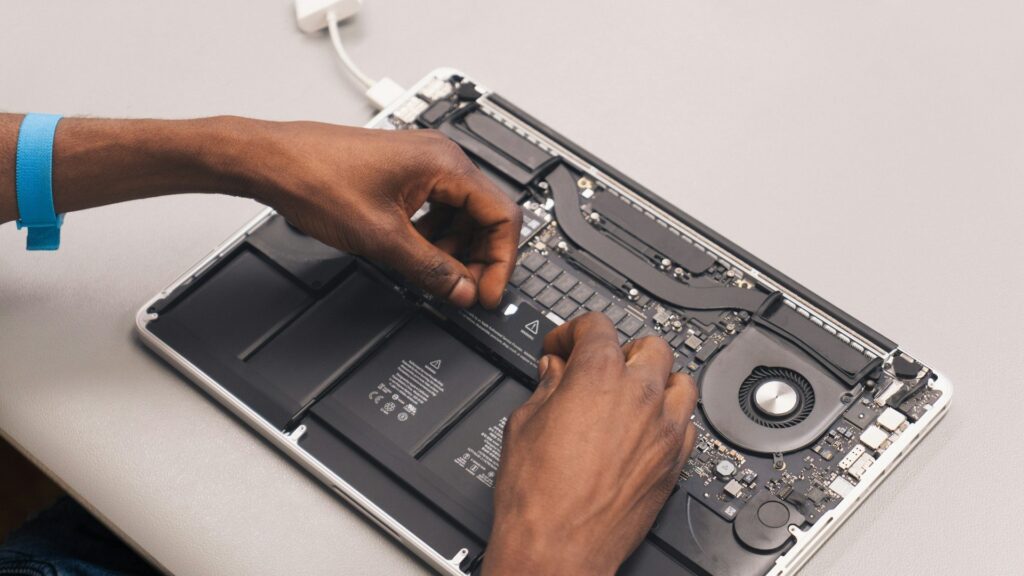
Two questions cut through vague quoting immediately. First: “Is this a component-level failure or a simple modular swap? Please itemise parts and labour separately.” Second: “Does the warranty cover both the part and the labour, and what exactly does it exclude?” Shops routinely cover parts but not labour, so push for both. The wording matters because it signals that you are not asking for a miracle, you are asking for a repair with defined scope, risk, and accountability.
Sourcing the part yourself is worth exploring. Ask whether the workshop will fit a customer-supplied component at a reduced rate; many independents will agree without much argument. The compromise is that some shops will not warranty a part they did not supply, which can be fair. If the machine is heavily soldered and unupgradeable, check its iFixit repairability score before deciding, as a low score is a reliable early signal that costs will escalate. A laptop that is difficult to open is often difficult to repair economically.
Confirm how your data will be handled before handing anything over. Back up first, or pull the drive if you can. Get the data handling policy in writing, check whether the diagnostic fee is waived if you proceed, and ask for at least a 90-day warranty covering parts and labour. Accreditation and in-house diagnostic capability generally indicate technical depth and a greater likelihood the repair will hold, particularly on soldered or less serviceable hardware. The better shops do not just say “yes”; they explain when a repair is a poor bet.
Diagnostic checks: beginner and advanced
Beginner checks
Start with startup applications, battery health cycle count, and the benchmark from Step 1. These catch most trivial slowdowns and take well under 15 minutes. On Windows, open Task Manager and review the Startup tab to disable unnecessary programs. For battery health, run in an elevated Command Prompt, then compare the cycle count and full-charge capacity against the design capacity.
These checks come first because they prevent expensive misdiagnosis. A laptop clogged with startup utilities can feel broken when it is merely overloaded. A battery with poor full-charge capacity can make the whole machine feel unreliable because every task is shaped by power anxiety. Fix the easy causes before paying someone to chase complicated ones.
Advanced checks
Three areas reveal hidden failure risks that people often miss until something goes wrong. These checks are not about squeezing one more benchmark point from an old laptop; they are about spotting the faults that shorten the Utility Horizon.
- Thermal paste condition: Remove the bottom panel and inspect the heatsink. Dried or cracked paste causes sustained CPU throttling, not just occasional slowdowns. The first sign is often a laptop that starts acceptably fast, then fades after a few minutes under load. Replace with a quality compound such as. Re-run the Step 1 benchmark afterwards and confirm sustained clock speeds have improved, not just peak figures.
- NVMe SMART attributes: Use (free, Windows) to read drive health. Check “Percentage Used” and confirm “Media and Data Integrity Errors” are 0. High usage or any integrity errors means replacing the drive should come before spending money on anything else. Storage problems create the kind of random hesitation that makes people blame the whole laptop.
- Swollen capacitors and corrosion: With the bottom panel off, inspect the motherboard under good lighting. Swollen capacitors show a domed or bulging top, sometimes with brown residue at the base. Corrosion from liquid ingress appears as white or green crystalline deposits, typically near the battery connector, USB ports, or keyboard ribbon connectors. Either finding cuts the reliable use window considerably and usually points toward board-level repair or replacement. For soldered, unupgradeable boards, also check iFixit’s for your model before committing to any work, as a low score can make professional repair uneconomical.
Opening a laptop can void warranties and requires ESD-safe handling. If you are unsure, have a professional carry out these inspections. Trouble during DIY checks usually comes from rushing or skipping anti-static precautions. If multiple stress points appear, a paid diagnostic from a reputable workshop is money well spent before committing to any repair. Curiosity is not the danger, confidence without preparation is.
Mistakes that cost money
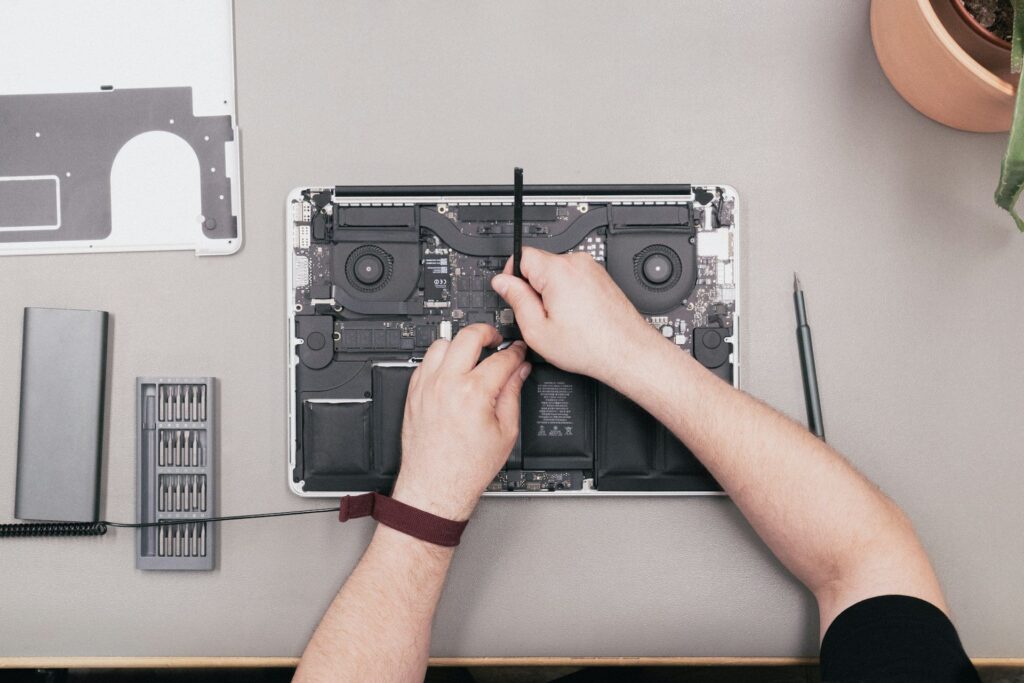
Treating it as a permanent fix is the most common error. Liquid damage is a ticking clock: even professionally repaired boards often fail again within months, and repair technicians consistently flag it as the biggest source of repeat callouts. The problem is that corrosion can continue after the laptop appears to work. A successful power-on is not the same as a stable future.
Cheap third-party batteries are the next trap. Capacity can degrade within weeks on poor-quality cells. favour reputable suppliers and get any capacity guarantee in writing, not just a vague warranty period. Batteries are one of the best-value repairs when the part is good and one of the most frustrating repairs when it is not. The saving on a bargain cell can disappear the first time the laptop shuts down halfway through a meeting.
An unsupported operating system changes the entire calculation. A machine running an unsupported OS becomes a genuine liability, however capable the hardware still feels. Check Windows 11 processor compatibility before spending anything on repairs. If your chip is not on the supported list, factor that end-of-life date into the decision early, because it is a cost many people ignore until it is already too late. Security support is not a nice-to-have feature; it is part of the laptop’s remaining value.
As of 2026 (UK retail prices): quality replacement NVMe SSDs are available for £30–£60 and branded laptop batteries for £25–£55, making targeted repairs genuinely accessible. Prices vary by region and retailer.
Repair is worth considering if the laptop still fits your work, still receives security updates, and has one clear fault that can be fixed cleanly. Replacement is the better move if the machine has several ageing points at once, unsupported software, soldered limitations, or a repair bill that only buys a few uncertain months. Do not ask only whether the laptop can be fixed. Many can. Ask whether the repair buys enough reliable time to justify the money.
Frequently Asked Questions
When should I consider replacing my laptop instead of repairing it?
Replace if the repair cost exceeds 40% of a quality refurbished equivalent, the machine is over five years old, or OS security updates end within 12 months. If two or more of those are true, replacement is usually the clearer and less frustrating call.
What is the Utility Horizon?
It is the minimum period of trouble-free use a repair needs to deliver to justify its cost. Twelve months is the floor. Below that, you are paying for temporary relief rather than dependable extra life.
Which laptop components are generally worth repairing or upgrading?
Screens, batteries, and SSDs are relatively cheap to swap and can meaningfully extend a machine’s useful life, provided the rest of the hardware is still sound. If RAM or storage is soldered and is the actual bottleneck, repair options narrow quickly.
What common mistakes should I avoid when repairing a laptop?
Be cautious with liquid-damaged board repairs, cheap batteries, and any costly fix on a machine close to losing OS support. A low repair price is not useful if the same fault returns or the laptop soon becomes unsafe for everyday online use.
How can I quickly assess my laptop’s current performance?
Time the boot sequence from power-on until you can open a browser, load a document, and play audio. Repeat it after removing unnecessary startup apps. That gives you a simple before-and-after baseline rather than relying on memory or frustration.
What should I ask for when getting a repair quote?
Request an itemised breakdown covering parts and labour separately. Confirm what the warranty covers, for how long, and what it excludes. Then check Windows 11 or macOS support before approving the repair, because unsupported software can cancel out an otherwise sensible hardware fix.
Editorial policy
This article was researched independently using publicly available manufacturer data, repair pricing surveys, and OS support documentation. No repair shop or hardware vendor paid for placement or influenced the recommendations. Price examples and shop-rate observations are drawn from a 2026 sample of UK retail and refurb prices and independent repair quotes; regional prices and availability vary.
Featured: Photo by Shekhar Vaidya (TechLatest)
Image 2: Photo by Revendo on Unsplash
Image 3: Photo by Revendo on Unsplash
Enjoyed this article?
If TechLatest has helped you, consider supporting us with a one-time tip on Ko-fi. Every contribution keeps our work free and independent.
Support on Ko-fiDirectly in Your Inbox