Highlights
- Windows 7 is one of the best-selling and most used operating systems from Microsoft.
- For some reason, if you still require a Windows 7 ISO, then you are in the right place.
- We have listed various methods to download the latest Windows 7 ISO.
⚠️ Security Notice: Windows 7 reached end of support on January 14, 2020. It no longer receives security updates from Microsoft. Do not use it as your primary PC for banking, work, or sensitive tasks without additional protection.
Don’t want to miss the best from TechLatest?
Set us as a preferred source in Google Search
and make sure you never miss our latest.
- Updated March 2026: Replaced mirror links with Adguard database links, added checksums for all editions, updated download table structure.
- Updated on 07-Jan-2023: Microsoft ended Extended Security Updates (ESU) for Windows 7 on January 10, 2023. All Windows 7 users are now completely without any official Microsoft security support. Added Enterprise editions.
- Updated on 01-Sept-2022: Added the Enterprise edition of Windows 7 ISO. You can choose between the x64 and x86 variants according to your system compatibility. Also, we added an alternative method to download the ISO files.
- Update 23-Nov-2021: Microsoft has removed the Windows 7 ISO download page from the website, so you can’t download the ISO file using your Windows 7 product key. So, use Method 1 to download the Windows 7 ISO.
Do you need Windows 7 ISO file for some reason, like your system is not compatible with the latest Windows 10 or your company is still working with Windows 7? Then the article is for you?
In this article, we will help you download Windows 7 ISO files for updating or clean installing Windows 7 on your old potato system.
Download Window 7 ISO (Ultimate, Professional, Home Premium Editions)
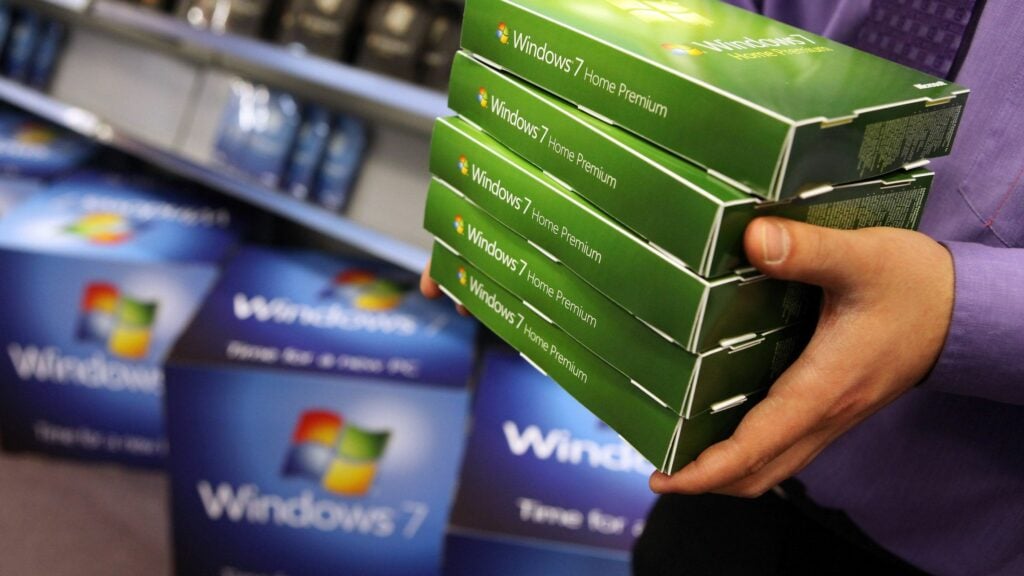
Method 1: Direct Downloads
Download the correct ISO file from the links below. These links will generate a direct download link from the official Microsoft server. Choose 64-bit or 32-bit based on your system type. Check this guide by Microsoft for further help.
These are direct download links to the English US ISO files. If you want ISO files in any other language, please comment below with the language, Windows edition, and system type of the ISO file you want, and we will try to provide direct download links.
Note: Unfortunately, Microsoft removed all the direct download links. Download links below include Adguard (verified Microsoft ISOs with checksums), and Mirror 2 (updated escrow build). Now, you can download from these mirrors and magnet links(via a Torrent Client).
- File: Windows 7 Ultimate ISO
- Size: ~3.7 GB to 5.5 GB
- Service Pack: SP1
- Version: 32-bit and 64-bit
| 64-bit | 32-bit | |
|---|---|---|
| Mirror 1 (Adguard) | Download | Download |
| Mirror 2 (Updated) | Download | Download |
| Mirror 2 Magnet | Link | Link |
Mirror 1 build checksums:
- SHA-1 (64-bit): 36ae90defbad9d9539e649b193ae573b77a71c83
- MD5 (64-bit): c9f7ecb768acb82daacf5030e14b271e
- SHA-1 (32-bit): 65fce0f445d9bf7e78e43f17e441e08c63722657
Mirror 2 build checksums:
- MD5 (64-bit): 8ce237e3d43ccfb41bfe32ccd4420e10
- MD5 (32-bit): 23effc7708412e1ff4c1b3a935c1400e
To verify your download, open Command Prompt and run:
certutil -hashfile "C:\path\to\your.iso" SHA1- File: Windows 7 Professional ISO
- Size: 5.5 GB/3.7 GB
- Service Pack: SP1
- Version: 32-bit and 64-bit
| 64-bit | 32-bit | |
|---|---|---|
| Mirror 1 (Adguard) | Download | Download |
| Mirror 2 (Updated) | Download | Download |
| Mirror 2 Magnet | Link | Link |
Mirror 1 build checksums:
- SHA-1 (64-bit): 0bcfc54019ea175b1ee51f6d2b207a3d14dd2b58
- MD5 (64-bit): ed15956fe33c13642a6d2cb2c7aa9749
- SHA-1 (32-bit): d89937df3a9bc2ec1a1486195fd308cd3dade928
- MD5 (32-bit): 0bff99c8310ba12a9136e3d23606f3d4
Mirror 2 build checksums:
- MD5 (64-bit): 262ff7318b375bdb70fdf84a3f6c3384
- MD5 (32-bit): 01cea5b8cc7ff196331c5a8237dfc870
To verify your download, open Command Prompt and run:
certutil -hashfile "C:\path\to\your.iso" SHA1- File: Windows 7 Home Premium ISO
- Size: 5.7 GB / 3.8 GB
- Service Pack: SP1
- Version: 32-bit and 64-bit
| 64-bit | 32-bit | |
|---|---|---|
| Mirror 1 (Adguard) | Download | Download |
| Mirror 2 (Updated) | Download | Download |
| Mirror 2 Magnet | Link | Link |
Mirror 1 build checksums:
- SHA-1 (64-bit): 6c9058389c1e2e5122b7c933275f963edf1c07b9
- MD5 (64-bit): da319b5826162829c436306bebea7f0f
- SHA-1 (32-bit): f0991cbdbf87d54c3bf97e189f7a4a5aba692a59
- MD5 (32-bit): ec49e3869291f2dc0aae53c21f3ac51a
Mirror 2 build checksums:
- MD5 (64-bit): 89fc10690c99d14e3363d23b3e2f6033
- MD5 (32-bit): 73807bd827432d75348092df86fb1b8d
To verify your download, open Command Prompt and run:
certutil -hashfile "C:\path\to\your.iso" SHA1Method 2: From Microsoft Download Page (Using Product Key) (Not Available)
In this method, we are going to take the help of Microsoft’s Windows 7 ISO download page. Note that we will need the genuine Windows 7 product key to download the latest ISO file, so keep the Windows 7 product key handy.
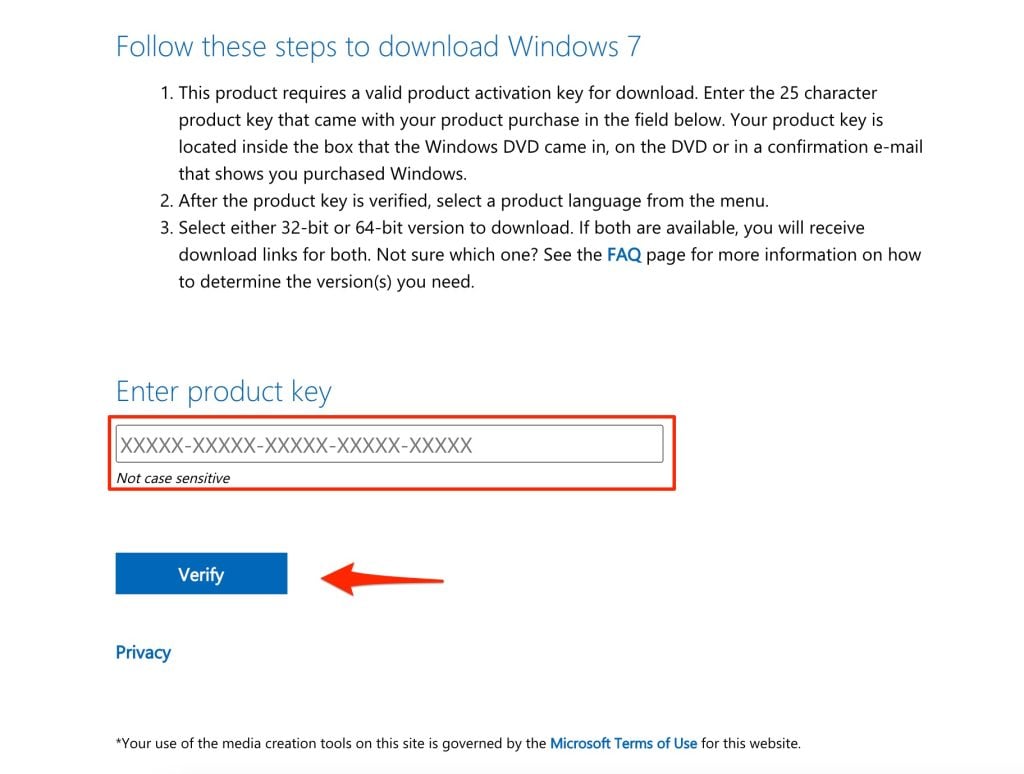
- First, go to this to open the Windows 7 ISO download page.
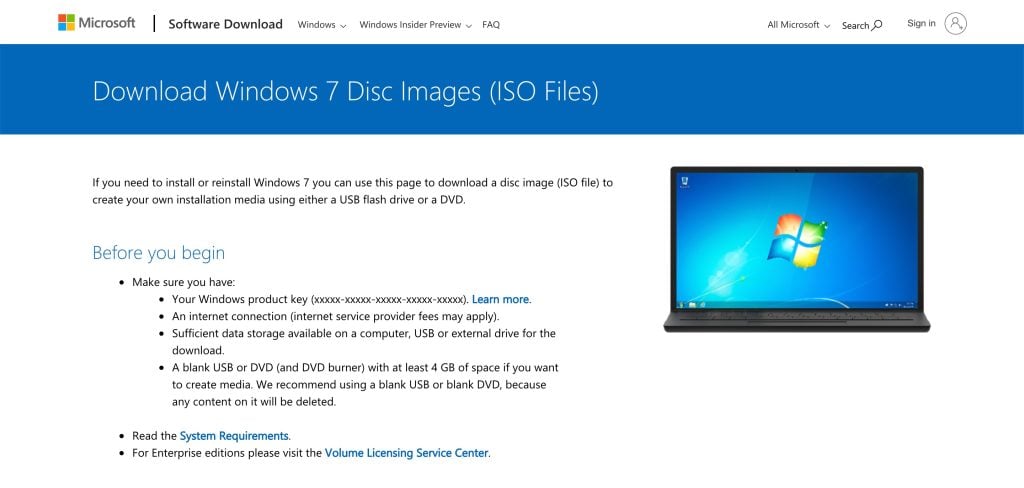
- You will notice something like this, just copy your Windows 7 valid retail key and click on the Verify button.
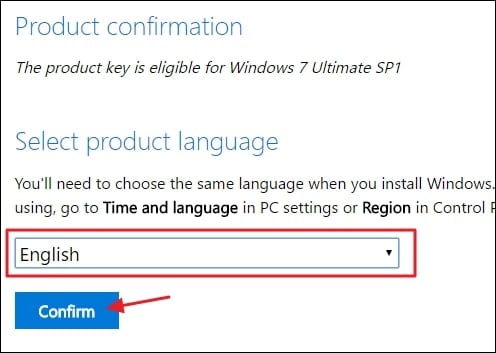
- The Select product language section will appear once the website verifies the key.
- Use the drop-down menu, select your preferred language, and click on the Confirm button.
- Finally, you will get the link(s) to download Windows 7 ISO, both 32–bit and 64–bit.
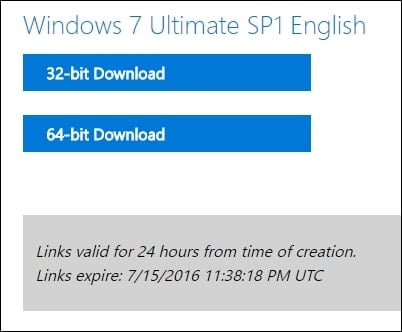
Note that the above Windows 10 ISO download links are valid for 24 hours, so you must download them within the time period; otherwise, you will have to repeat the same steps again.
Install Windows 7 ISO (Clean Install)
If you have your Windows 7 ISO file ready to update your system to the latest Windows 7 update, all you have to do is boot from the disc or USB thumb drive to start the setup. Now follow the following steps to clean-install Windows 7 using the ISO file.
- Insert a flash drive, at least 16 GB.
- Now, open Rufus to create bootable media for Windows 7.
- Make sure to keep all the default settings as they are.
- Now, click on the Start button and wait a while to finish.
- After completion, Rufus will ask you to restart the PC.
- Restart your PC, and while booting, before the Windows logo, tap the Boot Menu key to open it.
| Brand | Assigned Boot Menu Key |
|---|---|
| Acer | F12 |
| Asus | Esc or F8 |
| Dell | F12 |
| HP | Esc or F9 |
| Lenovo | F12, F8, F10 |
| Other | Esc or F1-F12 |
- You see a screen with a list of drives, choose the one you inserted/plugged in, and hit Enter.
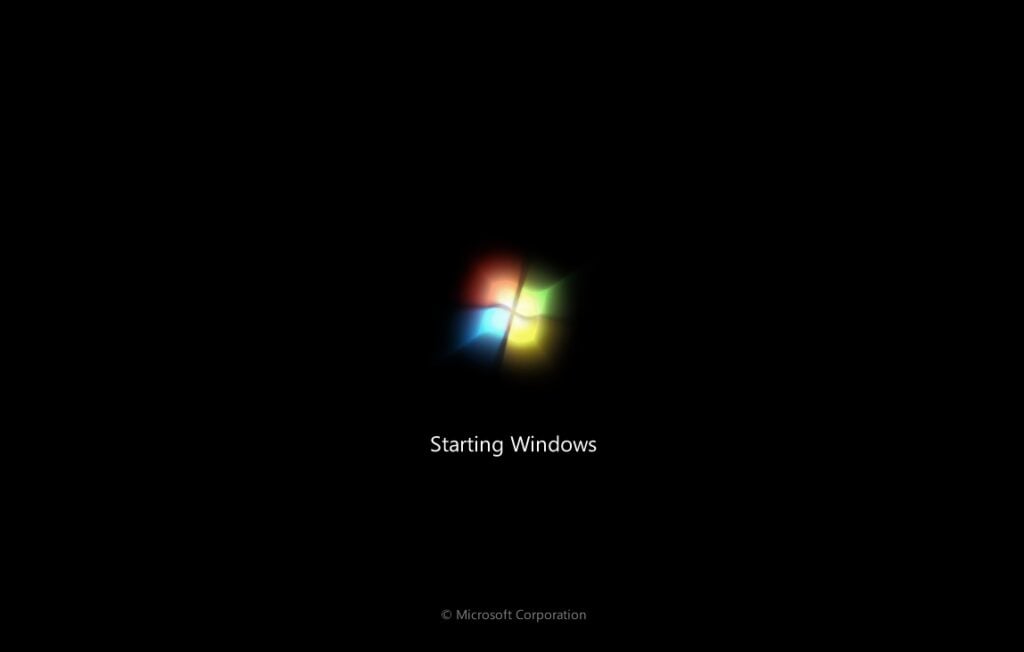
- Then the Windows logo will appear on the screen for a while, if you see the animated dots it means everything is fine.
- Next, you will be asked to select your Language, Time, and Keyboard method, and after configuring all these things, Click Next.
- Now click on Install Now.
- Now, the Windows 7 setup will ask you to enter the Product Key; if you have a Windows 10 product key, proceed to enter it. Otherwise, click on “I don’t have a key” or “Do this later.”
- Now, the setup will ask you to choose the correct edition of which you have a License, either Home or Pro. Make sure to enter the correct edition if you choose the wrong edition; then, you will need to perform a clean install again.
- Just wait for a while; the system prepares itself to copy files.
- Accept the license terms. To do so, check the box in front of “I accept the license terms”.
- Click Next.
- Click Custom: Install Windows only (advanced).
- Select the drive and then click Next. [If there are multiple partitions, select each from the bottom, then click to delete until only one unallocated drive is left]
- Select the unallocated drive list; Click New > Apply > OK.
- Select the Primary partition from multiple partitions, and click Next.
- Just wait for a few seconds while Windows installs.
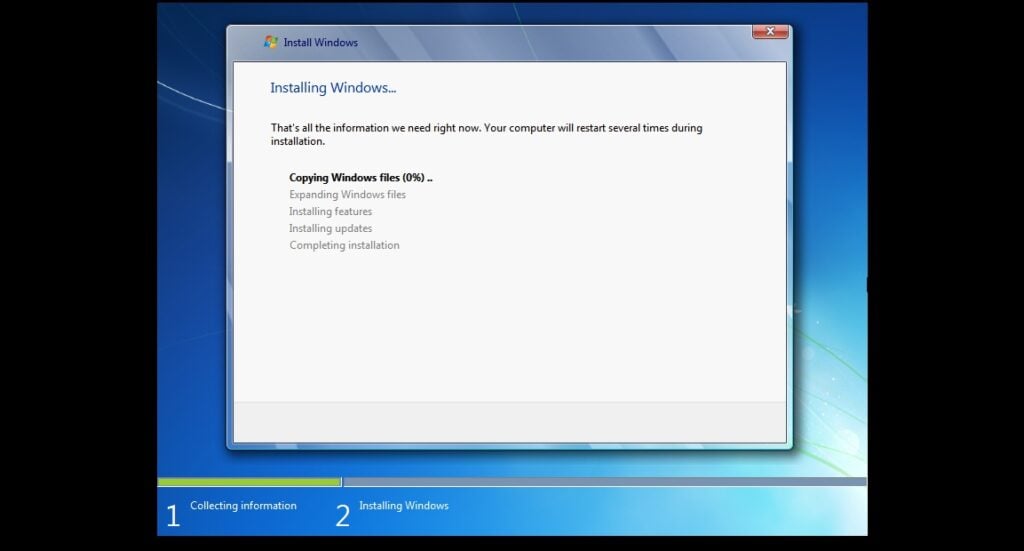
- When all this setup is completed, Windows will reboot into the setup automatically.
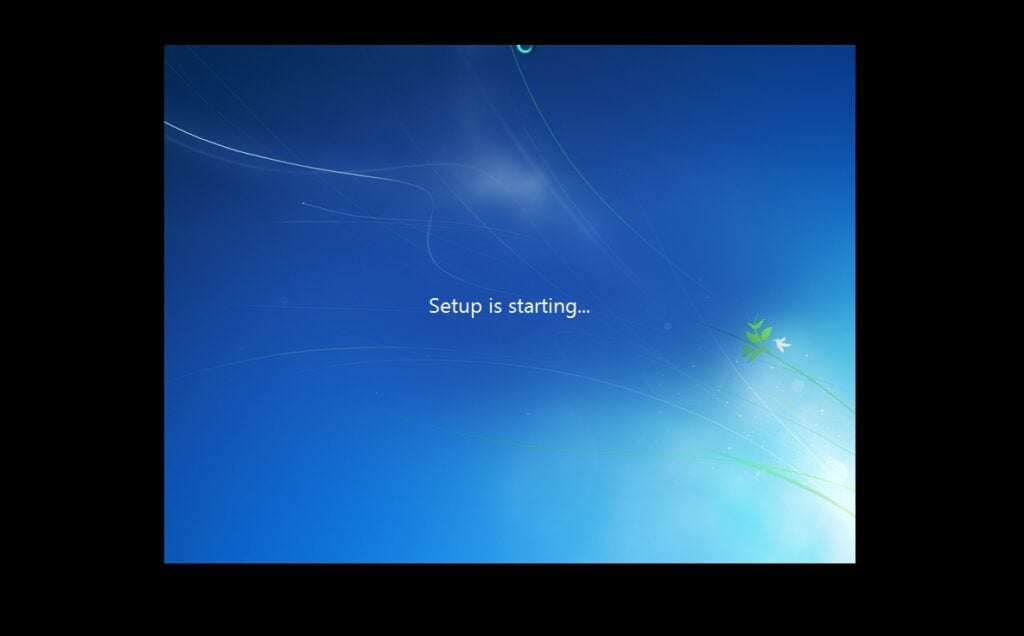
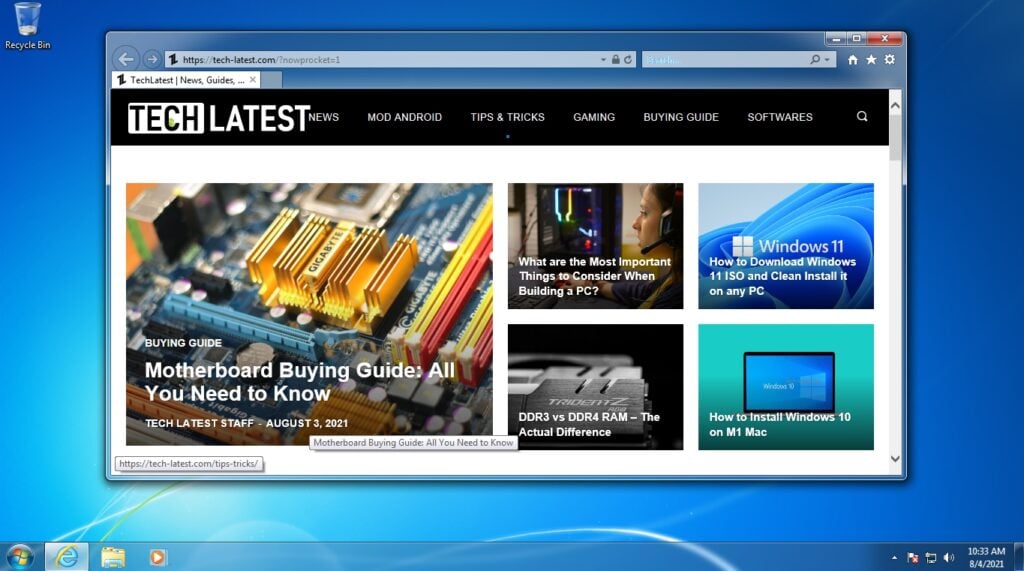
- After this, Windows will detect and install hardware. and it will restart for the last time.
General FAQs
-
Is this a genuine ISO file of Windows 7?
Yes. The Mirror 1 (Adguard) links point to genuine Microsoft ISO files verified with SHA-1 and MD5 checksums. Mirror 2 is a later updated escrow build, also genuine, just a different build with more patches included.
-
Is Windows 7 available in 32-bit?
Yes, we have provided the download links to both 64-bit and 32-bit.
-
Is it compatible with my 4GB RAM PC?
Microsoft’s minimum criteria for Windows 7 is 2 GB RAM to run smoothly on your PC.
-
Can I upgrade from 32-bit Windows 7 to 64-bit Windows 7?
It depends upon your system configuration. Check whether your processor is x64 or x32.
You can check it by doing the following,
Start button -> Right-click Computer -> Properties. Under System, see the system type.
If your system (processor) is x64-based, you must clean-install Win 7. -
Will I get windows updates?
No. Microsoft ended all security updates for Windows 7 on January 14, 2020. You will not receive any further patches or security fixes regardless of whether you have a valid license.
-
Which software we should use to write ISO images into USB drives?
There are many tools to create bootable media, but we recommend you use Rufus.
-
How can I get Windows 7 iso file for free?
Use the Adguard links above, they are free and point to genuine Microsoft ISO files. Mirror 2 is also free. You will need a valid Windows 7 license key to activate after installation.
-
Is downloading Windows 7 ISO illegal?
Not at all; Windows 7 ISO files are publicly available for all users. You can download them without any legal complications. But note that you will need a license key to use the OS.
-
Should I download Windows 7 from Torrent?
The Magnet links in this article point to genuine Microsoft ISO files. Always verify the MD5 or SHA-1 checksum after downloading to confirm the file hasn’t been altered.
-
Can we just copy Windows 7 ISO to the USB drive to make it bootable?
There are two methods to make a USB bootable, first, you use any tool like Rufus to do or, second, you can extract the iso file and copy all the files to the USB. Note that the second method will only work with old legacy BIOS mode.
Conclusion
So, that was it; we successfully downloaded the Windows 7 ISO file and installed it in our system.
If you didn’t understand any steps or have any other queries regarding this article, then feel free to comment below; we will be more than happy to assist you.
Peace!
Further Reading:
- Ghost Spectre Windows 10 Superlite Version
- How to Transfer Windows 10 from HDD to SSD
- Download Latest Windows 10 ISO
DMCA Disclaimer
TechLatest, which includes domains *.techlatest.in and *.tech-latest.com, abides by 17 U.S.C. * 512 and the Digital Millennium Copyright Act (DMCA). Our approach involves promptly addressing infringement notices and undertaking necessary actions. Please note that we do not possess ownership of any content published in this article. If you find that your copyrighted material has been shared on our site and you desire its removal, kindly reach out to us through the provided contact information.
Enjoyed this article?
If TechLatest has helped you, consider supporting us with a one-time tip on Ko-fi. Every contribution keeps our work free and independent.
Support on Ko-fiDirectly in Your Inbox