Highlights
- The Piso WiFi Pause Function allows admins to temporarily halt internet access to manage network load efficiently.
- Users can pause and resume their own remaining time if the admin has enabled the feature.
- Using Pause Time helps maintain a smoother network while avoiding unnecessary user frustration.
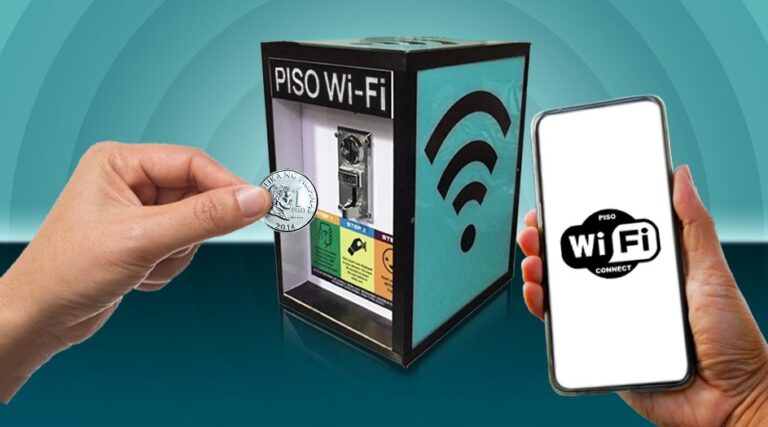
If you have used a Piso WiFi device, then you already know how unpredictable internet usage can be. However, some people connect for quick browsing, some stream for longer periods, and some people may forget that they are even logged in.
Meanwhile, for vendo owners, all of this adds up to just one thing: network congestion, and once bandwidth gets choked, everyone complains.
Don’t want to miss the best from TechLatest?
Set us as a preferred source in Google Search
and make sure you never miss our latest.
This is the reason the Piso WiFi system includes a smart but underrated tool, i.e., the Pause Function accessible at 10.0.0.1. Think of it as a temporary “hold” button for your WiFi.
It stops internet access for a short time but doesn’t break anything, doesn’t restart your router, and doesn’t wipe user sessions; it just pauses the flow. So, if you don’t know how to use the 10.0.0.1 Piso WiFi Pause Time, then this guide will help you do so. Therefore, let’s get started with the guide.
How to Access the 10.0.0.1 Piso WiFi Admin Panel
Most Piso WiFi vending machines use the address 10.0.0.1 as their default gateway. This is where you can control everything, including rates, users, vouchers, and the ability to pause. This is how to get in.
Make sure your device is connected to the Piso WiFi network first. Next, open any web browser on your phone, tablet, or laptop and type http://10.0.0.1/admin into the address bar. Don’t look for it on Google. Just type it into the address bar and hit enter.
Note: entering just http://10.0.0.1 without /admin will usually open the customer-facing portal instead, where users insert coins or pause their own time — the admin dashboard specifically needs the /admin path.
You will land on the login page. The default credentials are:
- Username: admin
- Password: 123456789
If those don’t work, the previous owner or technician might have changed them. You will have to do a factory reset on the vending machine to get it back to its original settings.
Can’t access 10.0.0.1 at all? Try these fixes:
- Make sure you are connected to the Piso WiFi network, not your mobile data
- Clear your browser cache or try a different browser
- Type http://10.0.0.1 not https://. The admin panel does not use HTTPS
- If your device has a saved DNS from another network, disconnect and reconnect to refresh it
- Try accessing http://10.0.0.0.1 as some older units use this address instead
What You Can Do From the Admin Panel
You can control how the network works once you log in. There are different parts to the admin panel, and it’s helpful to know what each one does before you start making changes.
Portal Settings is where most of the important controls live. From here you can manage the following:
- Insert Coin Mode: sets how the machine accepts payment and calculates time
- Voucher Mode: lets you generate and manage voucher codes for prepaid access
- User Interface: controls what users see on their login screen, including your custom branding
- Pause/Resume Buttons: enables or disables the pause function for users
WiFi Rates lets you choose how many pesos users get for how long. You can make different levels of rates, like 1 peso for 5 minutes, 5 pesos for 30 minutes, and so on. Changes made here will happen right away.
Connected Users shows you everyone who is currently connected to the network, along with their IP address, device type, and how much time they have left. This is helpful when you need to find out who is using too much bandwidth.
Pause Time, which is covered in detail below, lets you temporarily halt internet access across the network without disconnecting users or wiping their remaining time.
How to Change WiFi Rates on Piso WiFi
One of the first things you need to do as a vendor is set the right rates. You can change them at any time from the admin panel.
- Log in to the admin panel at http://10.0.0.1
- Go to WiFi Rates from the main menu
- You will see your current rate tiers listed, time per peso or peso per minute depending on your firmware
- Click Edit on any existing rate to change it, or Add New Rate to create an additional tier
- Set the amount and the corresponding time in minutes
- Click Save or Apply to confirm
Before you change rates, here are a few things you should know:
- Rate changes only apply to new sessions, so users who are already connected won’t be affected.
- Most vendo systems can handle 3 to 6 rate tiers.
- If you run in a busy place like a terminal or school, offering a short, cheap tier (1 peso for 5 minutes) along with a longer one cuts down on complaints about long lines.
What Exactly is Piso WiFi Pause Time?
Pause Time is basically a temporary internet stop. So, instead of shutting down your whole setup, it quietly stops all active sessions for a selected duration.
You can think of it like pausing a song while listening to it, not deleting it, not restarting it, just halting it while everything stays saved exactly where it was. Most Piso WiFi vendo systems offer three built-in pause durations:
- 30 minutes
- 1 hour
- 2 hours
Admins can exceed those defaults, depending on which firmware they are running, but those three are the most recognized. The idea behind Pause Time is not a complicated one. It exists so admins can:
- Control heavy usage during peak hours
- Prevent a few devices from hogging the entire bandwidth
- Perform maintenance or adjustments without cutting power
- Reset their connection without annoying regular users
- Manage the network when too many clients connect at once
Unfortunately, it’s a feature that is often ignored because most players care only about getting the coins. But once you figure out how to use it effectively, you realize it’s a lifesaver, particularly during times when everyone appears to be online simultaneously.
Why Pause Time Matters in Real-Life Usage?
If you’ve ever managed a Piso WiFi machine, you already know that the biggest struggle isn’t selling internet, it’s keeping the network stable while dozens of people connect using every device imaginable. I personally use it whenever I need to:
- Free up bandwidth for a quick video call or work upload
- Restart my vendo menu without dropping user sessions
- Stop the system from getting overloaded
- Temporarily hold the network during maintenance
- Prevent peak-hour chaos
The best part is that Pause Time isn’t disruptive. All that users see is the internet pause for a moment and come back to life.
How to Use Pause Time From the Admin Panel (Step-by-Step)
If you are an admin or owner, here is how you activate Pause Time from your dashboard:
1. Open Your Browser
Use any device, your phone, laptop, or tablet.
2. Enter the Admin URL
Type: http://10.0.0.1/admin This opens your Piso WiFi dashboard login page.
3. Log In
Default credentials (if not changed):
- Username: admin
- Password: 123456789
A lot of owners forget the password after changing it, so a factory reset is usually required.
4. Find Internet Access Options
Scroll through the dashboard until you find Internet Access Time.
5. Pick a Pause Duration
Choose between:
- 30 minutes
- 1 hour
- 2 hours
6. Apply Your Settings
Click Apply.
7. Hit the Pause Button
When you hit Pause, the network will be paused immediately for the chosen duration.
All of the devices hooked up to the network will briefly stop searching, but their search itself is not wiped clean.
Users Can Pause Their Own Time Too
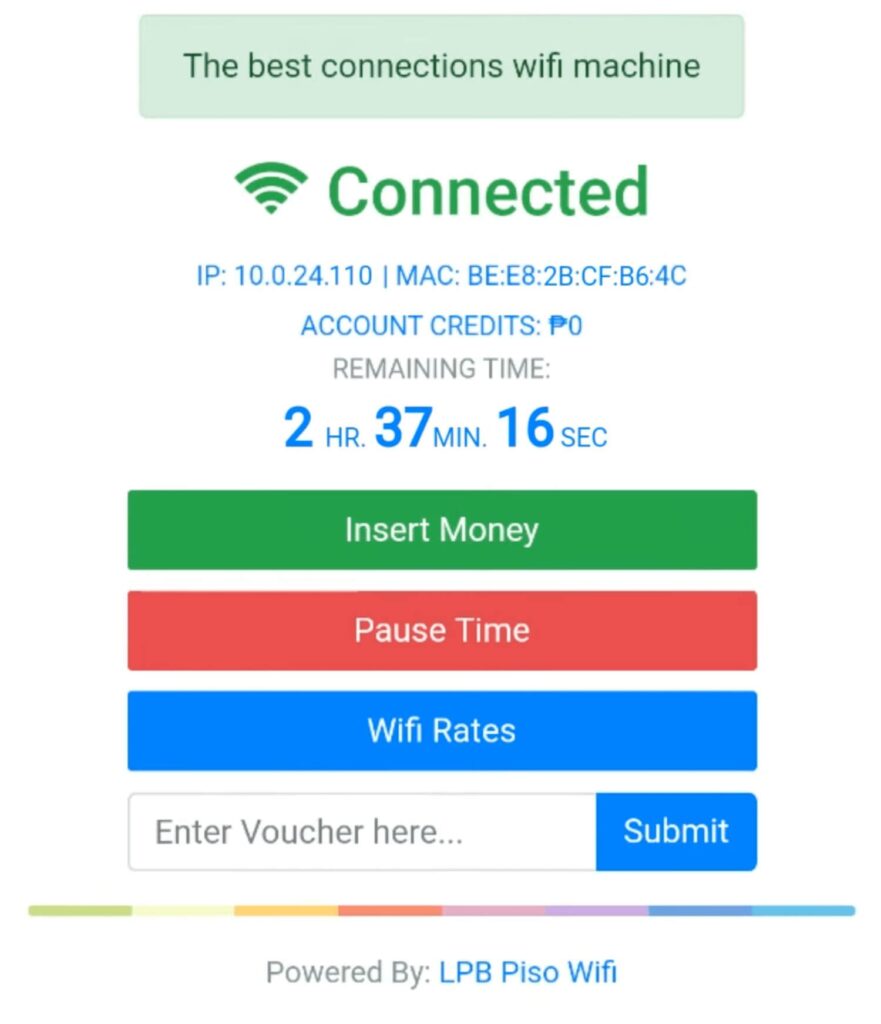
Many Piso WiFi users don’t know they can pause their own consumed time using the login page.
- Going out for chores
- Low battery situations
- Changing devices
- Going to eat or sleep
- Avoiding wasting their remaining minutes
Here’s how a regular user can do it:
- Connect to the Piso WiFi network: Open your WiFi menu and click the network name.
- Open the Login Portal: Either through the “Sign In” pop-up or by typing: http://10.0.0.1
- Press Pause Time: This stops the timer instantly.
- Press Resume Time When Ready: Your timer continues from where you paused it.
The only catch is that this feature depends entirely on the admin. If the vendo owner disables it, users won’t see the Pause button at all.
How Admins Can Enable or Disable the Pause/Resume Feature

If you own a Piso WiFi vendo machine, you control whether users are allowed to pause their time. Some owners prefer to disable it because users pause for too long. Others keep it enabled to avoid complaints about wasted credits. Here’s how to control the setting:
- Connect to the Piso WiFi network: Use any device.
- Go to the Admin Portal- Visit: http://10.0.0.1/admin
- Log In: Use your admin username and password.
- Open the Side Menu
- Go to Portal Settings- Here you’ll find features related to:
- Insert Coin Mode
- Voucher Mode
- User Interface
- Pause/Resume Buttons
- Toggle Pause Time: You can switch it on or off depending on how you want users to behave on your network.
- Save Your Settings: Click Apply, and the change takes effect immediately.
What Are The Limitations You Should Understand Before Using Pause Time?
Like any tool, Pause Time is helpful, but not perfect. Here are a few things to keep in mind:
1. It Can Frustrate Users
If you pause the network without warning, some users will panic, thinking their time is gone. A simple sign or message solves this problem.
2. It May Interrupt Important Tasks
Some users rely on Piso WiFi for work, Shopee or Lazada orders, GCash transactions, Grab deliveries, and messaging platforms, so a pause could affect them.
3. Some Firmwares Behave Differently
Older Piso WiFi versions may pause the UI but not fully block bandwidth.
4. You Can’t Pause Forever
Most systems have a limit on how long you can keep sessions paused.
5. User Sessions Might Expire
If the Pause lasts too long, some vendo systems auto-expire sessions. However, these limits help you use the feature wisely without upsetting regular customers.
How to Fix Common Problems With Piso WiFi Pause Time
Most Pause Time issues fall into one of these categories:
1. Can’t Access 10.0.0.1
- Not connected to the correct WiFi network
- Browser cache interfering
- Router settings changed
- The device is stuck with the old DNS
Refreshing or reconnecting usually fixes this.
2. Pause Button Not Showing
- Admin disabled it
- Vendo system is outdated
- Portal skin doesn’t support the feature
3. Time Doesn’t Resume Correctly
This happens when:
- The vendo machine lags
- The router freezes
- The user paused for too long
A reboot usually solves it, but only an admin can perform this.
4. User Thinks They Lost Time
Most of the time, they resumed incorrectly, or the session expired naturally. Clear communication helps avoid misunderstandings.
How to Completely Disable Pause Time
If you want to remove the feature completely:
- Log in to the admin panel.
- Go to Pause Access.
- Enter your password.
- Hit Apply.
Once disabled, neither you nor your users can pause anything.
So, that’s all we have for you about how to use the 10.0.0.1 Piso WiFi Pause Function. We hope that this guide has helped you.
Enjoyed this article?
If TechLatest has helped you, consider supporting us with a one-time tip on Ko-fi. Every contribution keeps our work free and independent.
Support on Ko-fiDirectly in Your Inbox