Highlights
- MediaTek USB VCOM drivers are necessary to connect your MediaTek device to your computer.
- If you want to download and install these drivers on your Windows PC, then you have come to the right place.
- Here in this guide we have mentioned the exact way using which you can easily download MediaTek USB VCOM drivers for Windows.
If you own a MediaTek (MTK)-powered smartphone or tablet device, here is the best place to get the free MediaTek USB VCOM drivers.
These drivers are for flashing firmware, ROMs, and files; installing apps; and debugging on your phone if you connect it to the computer.
Don’t want to miss the best from TechLatest?
Set us as a preferred source in Google Search
and make sure you never miss our latest.
In this post, we’ll take a closer look at what these drivers are, why you need them, where and how to download them safely, and the step-by-step process of installing them on Windows (including Windows 7, 8, 10, and 11).
What are MediaTek USB VCOM drivers?
MediaTek USB VCOM (Virtual COM Port) Drivers Windows-based driver goes along with all the MediaTek smartphones, which allows you to easily connect any MediaTek Android device to the Windows computers. It is mostly applied to drivers:
- Flashing Stock Firmware (using tools like SP Flash Tool)
- Installing Custom ROMs
- Unlocking Bootloaders
- Rooting MTK devices
- Recovering bricked phones
In other words, if you don’t have the VCOM drivers installed on your PC, it is practically impossible to detect your MediaTek device under instrumental conditions, like when it is turned off or it is stuck in boot loops.
System Requirements
Before installing, ensure your system meets these basic requirements:
- OS: Windows 7, 8, 8.1, 10, 11 (32-bit or 64-bit)
- CPU: Intel or AMD processor
- RAM: Minimum 2 GB (Recommended 4 GB+)
- Administrator Access on the PC
- Disable Windows Driver Signature Enforcement (more on this below)
Why are MediaTek USB VCOM drivers important?
Here’s why:
- Common drivers give you the ability to do simple file transfers (pictures, videos, and documents).
- VCOM drivers are used when the device is in Download Mode, Meta Mode, or Preloader Mode to flash firmware on the device to unbrick it.
Flashing tools without VCOM drivers will give errors such as:
- “BROM ERROR: S_FT_DA_NO_RESPONSE (4001)”
- “BROM ERROR: S_COM_PORT_OPEN_FAIL (1013)”
- Or your device won’t even show up on the PC.
So, it’s really important to have the MediaTek VCOM drivers installed so you can avoid these issues when flashing your phone or you need to do something so important in deep-level operation in your device.
Supported Devices
Here, we have managed to share the latest version of the MediaTek USB VCOM drivers along with the previous versions of the MediaTek USB VCOM drivers. This includes smartphones, tablets, feature phones, and IoT devices from brands like Infinix, Tecno, Xiaomi, Oppo, Vivo, Realme, and Micromax.
The drivers are compatible with a wide range of MediaTek chipsets, including the following:
Older chipsets: MT6572, MT6580, MT6582, MT6592, MT6735, MT6737, MT6750, MT6753, MT6755, MT6757, MT6761, MT6762, MT6765, MT6768, MT6771, MT6785
Newer chipsets: MT6833, MT6853, MT6873, MT6877, MT6879, MT6883, MT6885, MT6889, MT6893, MT6895, MT6897
Dimensity series: Dimensity 700, Dimensity 720, Dimensity 810, Dimensity 900, Dimensity 920, Dimensity 1000, Dimensity 1100, Dimensity 1200, Dimensity 6300, Dimensity 6700, Dimensity 7300, Dimensity 8300, Dimensity 9300, Dimensity 9400
If your device runs any MediaTek chip not listed here, the drivers will very likely still work.
Download MediaTek USB VCOM Drivers for Windows
Here are the direct download links to the official and tested drivers:
- File Name: Windows_10_MTK_VCOM_USB_Preloader_Drivers.7z
- File Size: 28KB (packed) / 28,355 bytes unpacked
- Developer: MediaTek Inc.
How to Install MediaTek USB VCOM Drivers on Windows
The installation of VCOM drivers can be a bit confusing if you don’t have a step-by-step guide. Here’s how you can do it, step by step:
Disable Driver Signature Enforcement on Windows 64-bit
Note for Windows 11 24H2 users: Microsoft updated the Settings layout in the Windows 11 24H2 update. If you are on 24H2, the path is slightly different from what is shown in the screenshots below. Follow these steps instead:
- Open Settings → System → Recovery
- Next to Advanced startup, click Restart now
- Your PC will restart into the recovery environment
- From here, follow steps 4 onwards below; the Troubleshoot → Advanced options → Startup Settings path is the same
To disable driver signature enforcement on Windows 64-bit, perform these steps:
- Start > Settings > System.
- In the left pane, select Recovery.
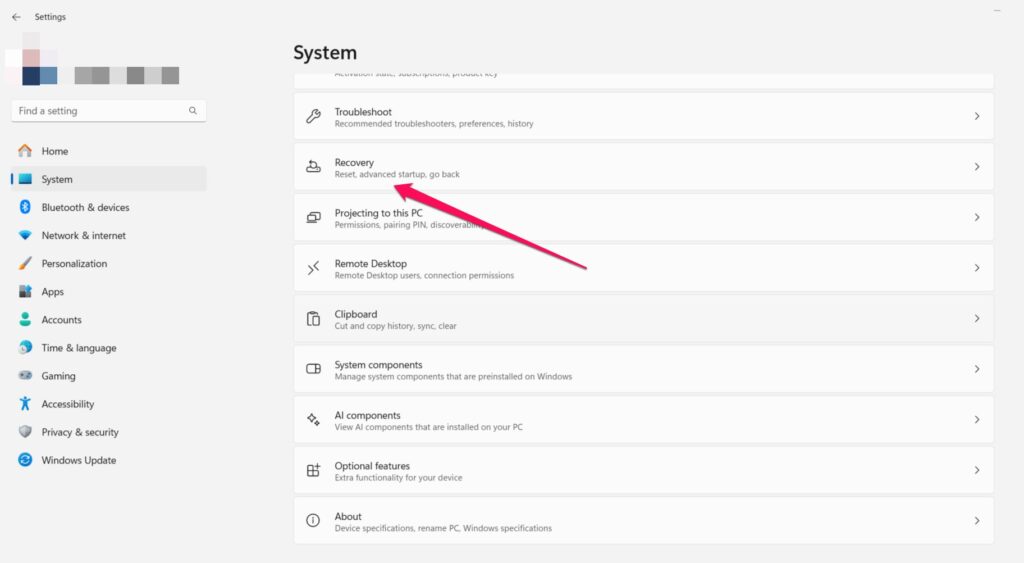
- Under Advanced Startup, click on Restart Now.

- Afterward, click on Troubleshoot and then click on Advanced options.
- Click on Startup settings > click on Restart.
- It will reboot to startup settings with multiple options.
- If you wish to turn off the driver signature enforcement feature, press 7 or F7.
- You can now add the driver.
- Repeat the process after successfully installing the MTK VCOM USB driver.
Note: The names of the files in the extracted folder may be a little different from the screenshots above, depending on which version of the driver you downloaded. Find any .inf file with “MTK” or “MediaTek” in the name. If you have 64-bit Windows, choose the x64 version. If you have 32-bit Windows, choose the x86 version. If you see more than one .inf file, the right one is usually called something like Windows 10/11 x64 MTK USB Drivers.inf.
Steps to Install MTK VCOM Driver on Windows PC
Here are the crucial steps that you need to perform to install MTK VCOM Driver on Windows PC:
- Extract the downloaded .7z file using 7-Zip, WinRAR, or WinZip.
- Thereafter, right-click on the start icon and click Device Manager.
- Click the first device in Device Manager.
- Click Action > Add legacy hardware.
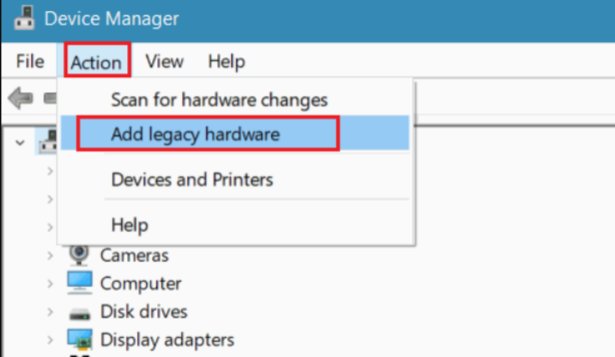
- The Add Hardware Wizard will open, and click Next.
- Afterward, choose “Install the hardware that I manually select from a list (Advanced)” and click Next.
- Choose Show All Devices and click Next.
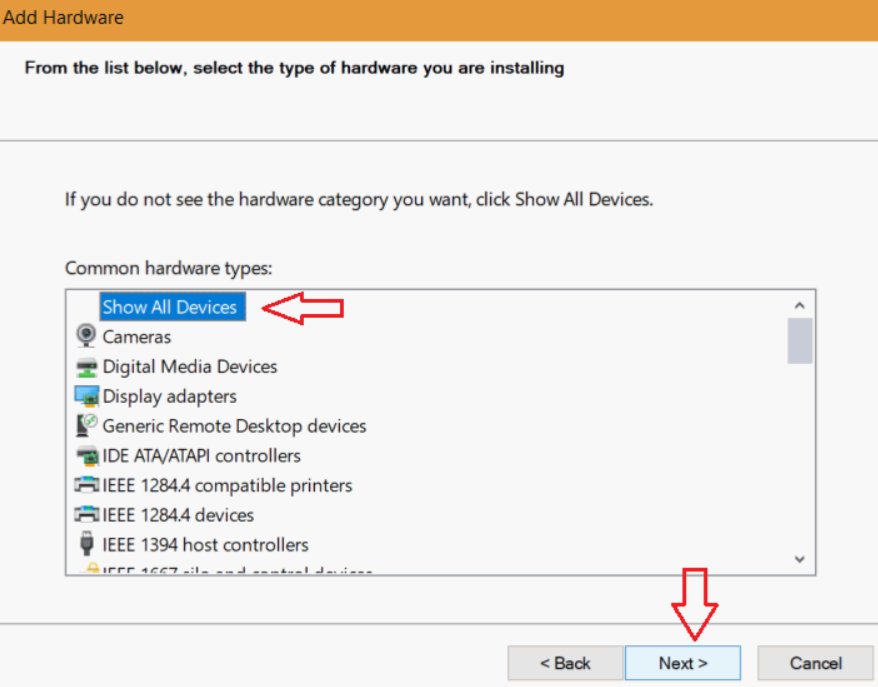
- It is now time to click Have Disk and browse to the extracted folder.
- Now, choose Windows 10/11 x64 MTK USB Drivers.inf for 64-bit Windows or Windows 10/11 x86 MTK USB Drivers.inf for 32-bit Windows.
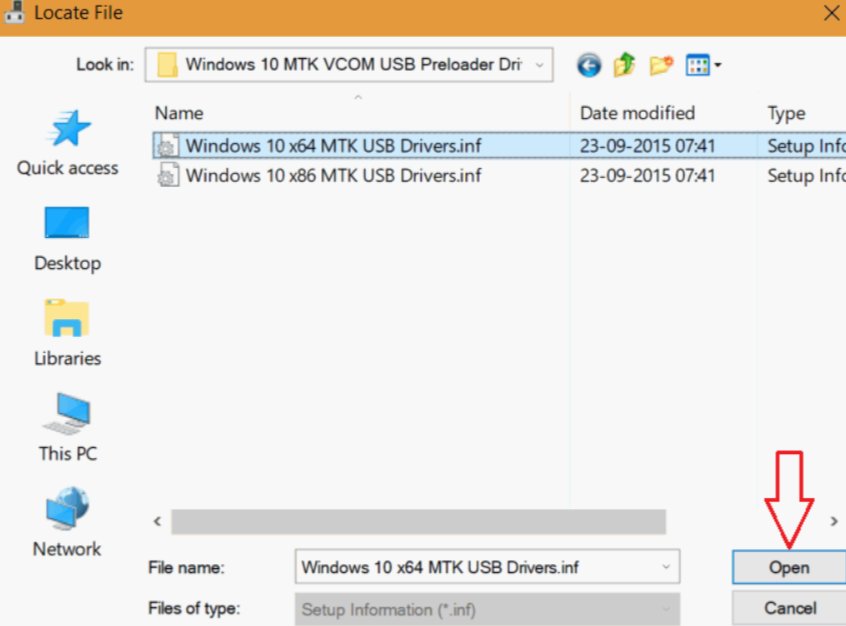
- After that, click on OK. Pick up the MTK USB Port from the Model Load and click on Next.
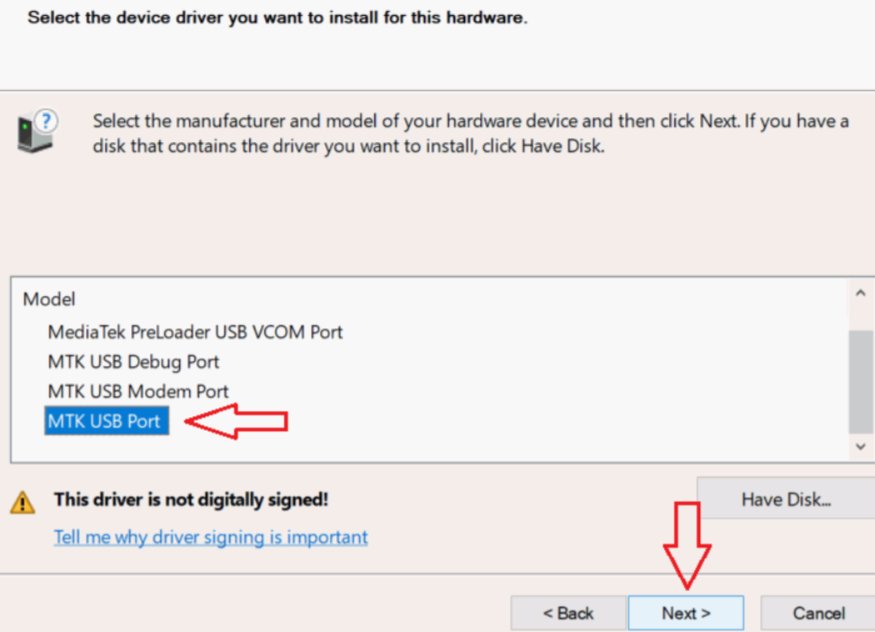
- If a warning window appears, click Install the driver software anyway.
- That will install Mediatek Preloader USB VCOM Port, MTK DA USB VCOM Port, MTK USB Debug Port, MTK USB Modem Port, and MTK USB Port.
- Launch Device Manager once more and navigate to Ports (COM & LPT).
- Right-click MTK USB Port (COM3), uninstall, and click Ok to uninstall.
- On the Confirm Device Uninstall dialog box, unselect “Delete the driver software for this device” and click OK.
That’s it! You are now downloading and installing MTK VCOM USB drivers on your Windows PC.
Now you may connect your MediaTek device to your PC for transferring files and flashing firmware on your phone, including recovery while the MediaTek phone is off.
Such as SP Flash Tool, which can detect your device if VCOM USB drivers are installed.
How to Uninstall MediaTek VCOM Drivers (If Needed)
If you ever need to remove the drivers:
- Open Device Manager.
- Afterward, click the plus sign next to Ports (COM & LPT).
- Right-click on “MediaTek PreLoader USB VCOM Port” and choose Uninstall device.
- Thereafter, select the box to delete the driver software for this device, and click OK.
- Restart your PC.
This will also uninstall the drivers completely.
Conclusion
MediaTek USB VCOM drivers are the most critical things to possess on your PC for flashing and custom ROM installation purposes on MediaTek devices.
These drivers will serve as the link between your phone and computer, especially when your device is in bootloading mode, such as Meta Mode, Preloader Mode, etc.
So, that’s all we have for you about downloading MediaTek USB VCOM drivers for Windows. We hope that this guide has helped you.
Enjoyed this article?
If TechLatest has helped you, consider supporting us with a one-time tip on Ko-fi. Every contribution keeps our work free and independent.
Support on Ko-fiDirectly in Your Inbox