Highlights
- One of India’s popular telecom service providers, Jio, has a high-speed network with its JioFiber and JioFi routers.
- Here we need to login to the Jio router login page in order to configure and administrate these routers.
- This post is will guide you on how to log into Jio router, solve technical issues and also help optimize your network settings.
You can rely on Jio if you are using a Jio Fiber broadband connection or a Jio Wi-Fi router, but it is crucial to find out how to access your Jio router admin dashboard to manage your internet settings.
Be it changing Wi-Fi passwords to check connected devices or enabling parental controls, you can do everything from the router login panel.
Don’t want to miss the best from TechLatest?
Set us as a preferred source in Google Search
and make sure you never miss our latest.
This article provides you with a complete guide to executing Jio router login, along with the default username and password, setup process, and troubleshooting typical problems.
How to Access the Jio Router Login Page
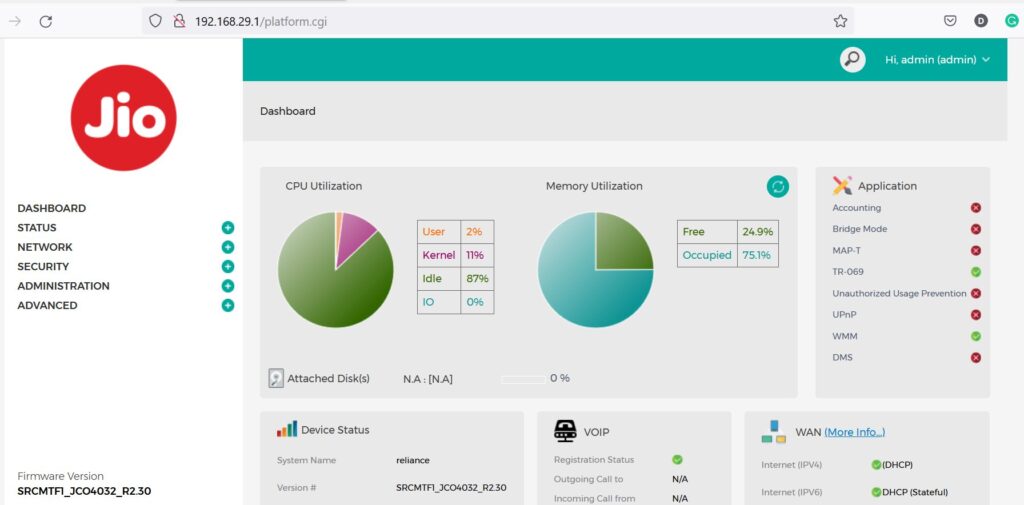
To log in to your Jio router, follow these steps:
Step 1: Connect to the Jio Router
- Via Wi-Fi: On the device that you wish to share the internet with (laptop, smartphone, and tablet), log in to the Jio router’s Wi-Fi network.
- Via Ethernet Cable: For a wired connection, you can hook up the Elgato directly to your router and computer using an Ethernet cable.
Step 2: Open a Web Browser
Open any web browser (Google Chrome, Firefox, Edge, or Safari) and type in the default IP address of the Jio router in the search bar:
- Default Jio Router IP: 192.168.29.1 (JioFiber), 192.168.31.1 (Jio AirFiber)
Step 3: Enter Login Credentials
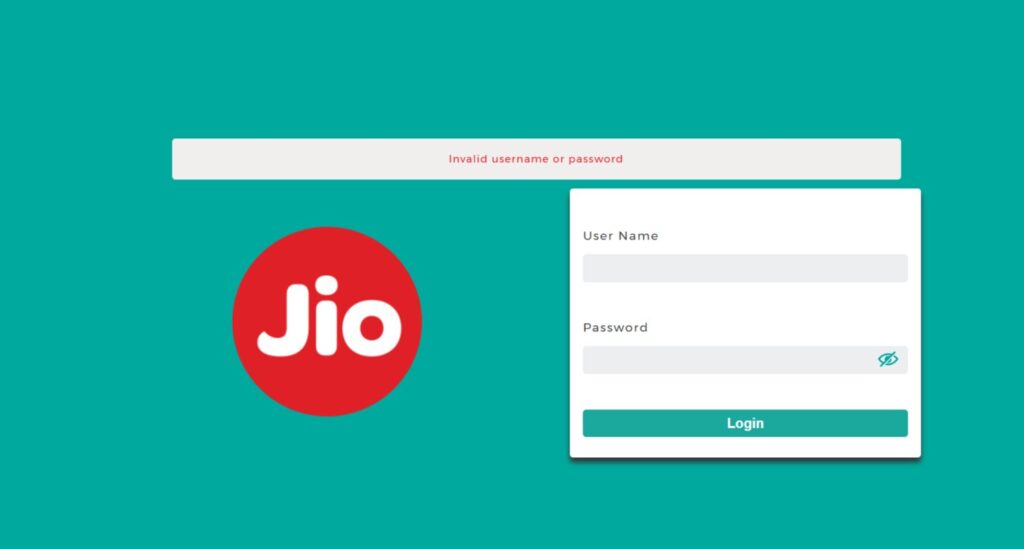
You will be redirected to the Jio router login page. Type the username and password to log in.
Step 4: Access the Admin Dashboard
Once you log in successfully, you are brought to the Jio router admin panel instead, where you can change settings.
Default Jio Router Login Credentials
Most Jio routers come with default login credentials:
| Router Model | Username | Password |
|---|---|---|
| JioFiber (standard) | admin | Jiocentrum |
| Newer JioFiber models | admin | Check router label |
| JioAirFiber | admin | Check router label |
Note:
- The router’s label or its user manual may have the password you’re looking for if the default credentials above don’t work.
- Change your password after the first login for security.
What to Do When Jio Router Forces a Password Change
If you are logging in for the first time after a factory reset, your Jio router will not let you use the default credentials. Before you can get to the dashboard, it will ask you to set a new password for both the admin and guest accounts.
Jio added this security feature to newer firmware versions, and it confuses a lot of users because the router is very picky about what it accepts.
Your new password must meet all of these requirements:
- At least one uppercase letter (A–Z)
- At least one lowercase letter (a–z)
- At least one number (0–9)
- At least one special character (such as @, #, $, !)
- Minimum 8 characters total
- Cannot be a simple or commonly used password
For example, a password like Jio@12345 or Admin@2026 will be accepted. A password like admin123 or jiofiber will be rejected.
You will need to set this for two accounts:
- Admin account: this is your primary login for managing the router
- Guest account: this is a secondary account with limited permissions; you still need to set a valid password for it even if you never use it
After you set both passwords, save your changes and log back in with the new admin credentials. Put both passwords somewhere safe. If you forget them, the only way to get back in is to reset the factory settings again.
Still getting rejected after following the rules?
Try these:
- Make sure there are no spaces in the password
- Avoid using the username “admin” as part of your password
- Try a different special character; some older firmware versions only accept certain symbols
- Clear your browser cache and try again in a fresh tab
Changing Jio Router Password
To strengthen the level of protection, change the Jio router password:
- Open the router’s administration panel, 192.168.29.1 or 192.168.31.1.
- Select Administration > User Management.
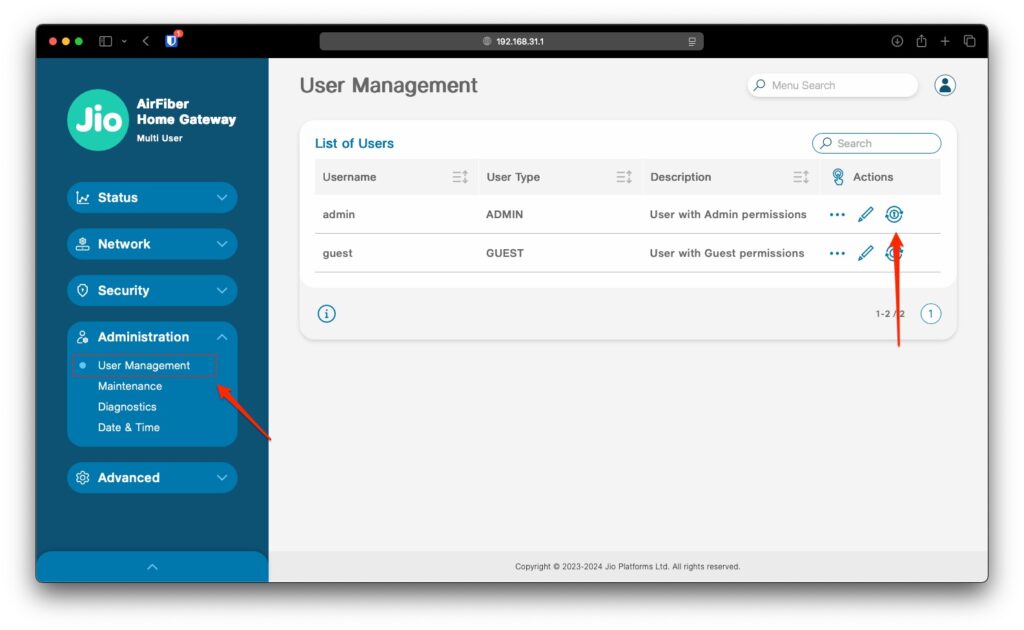
- Type in your current password and your new password.
- Save changes and log back in using the new password.
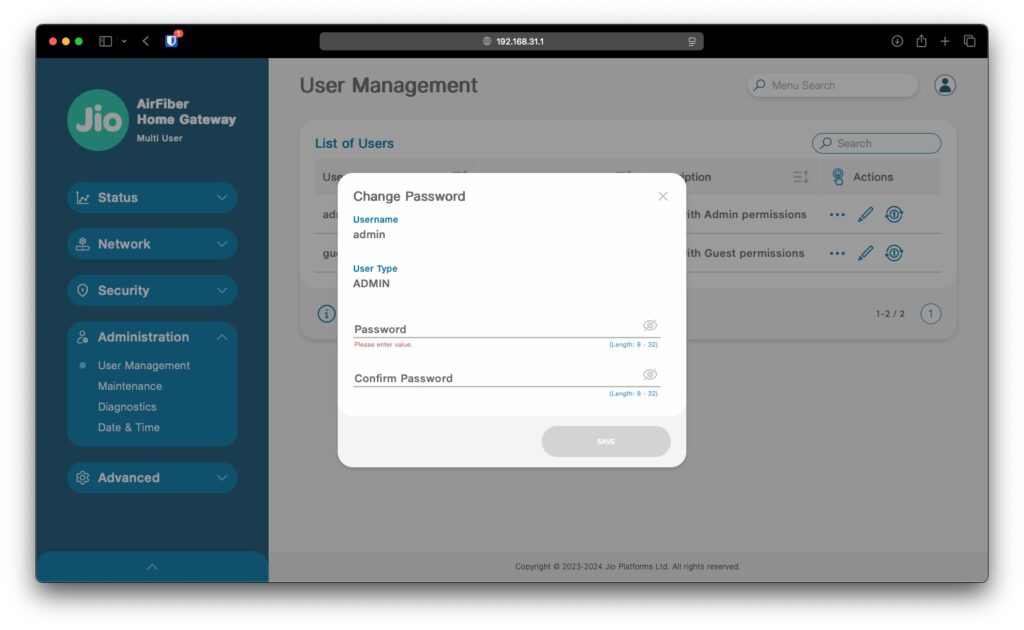
Tips: Ensure that you use a strong password (combinations of upper and lower case letters, numbers, and symbols) to avoid unauthorized access to the data.
Troubleshooting Jio Router Login Issues
If you are unable to access the Jio router login page, try these fixes:
Issue 1: Incorrect IP Address
- Make sure the right IP is being used (192.168.29.1 or 31.1), whatever it is!
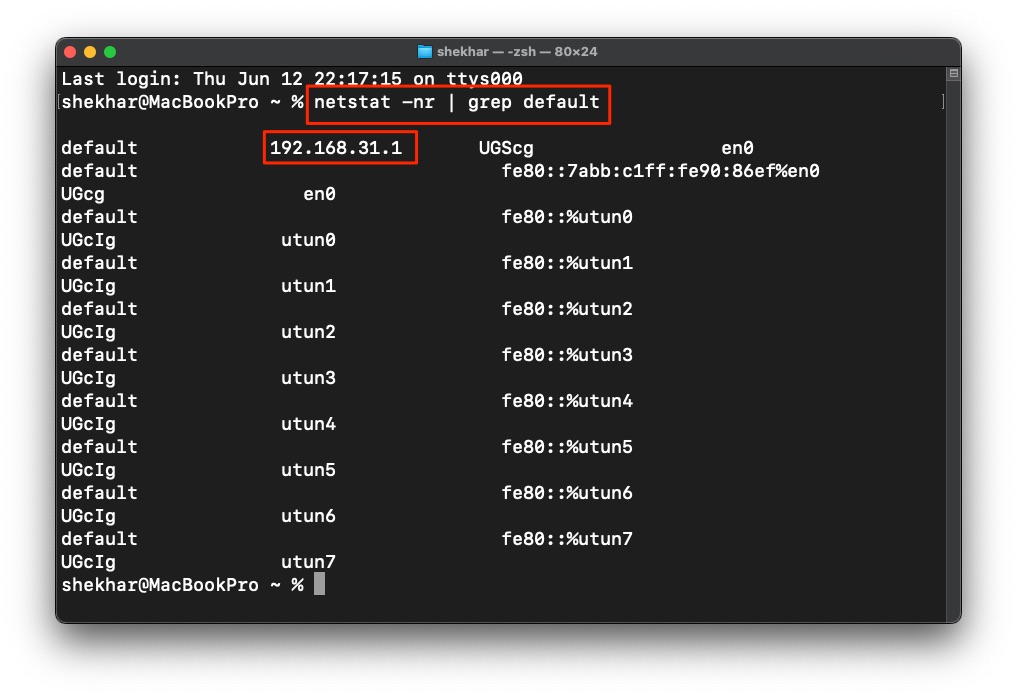
- Locate the right IP through the Command prompt (Windows): ipconfig, Terminal (Mac): netstat -nr | grep default
- Search for the IP address of Default Gateway.
Issue 2: Network Connection Problems
- Reboot the router and the device.
- Make sure that your Internet connection (Ethernet/Wi-Fi) is stable.
Issue 3: Forgotten Password
- Restore the router to its default settings by using the reset button at the back of the Jio router. You will have to use a pin to click it. (Full steps in the below section)
Configuring Jio Router Settings
Once you’re in, you’ll be able to customize different parameters:
A. Wi-Fi Settings
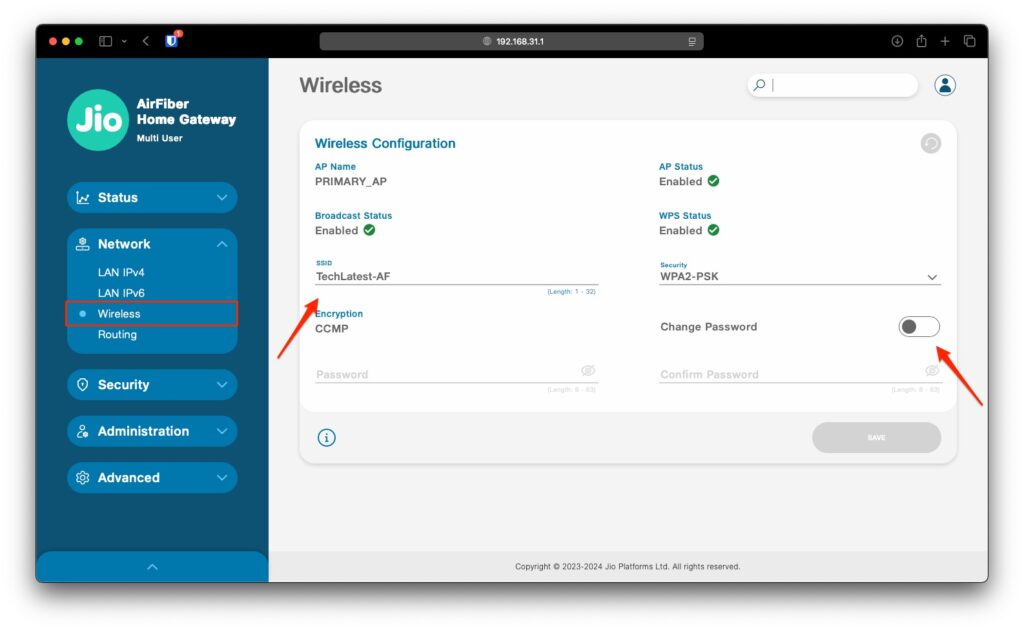
- Change Wi-Fi Name (SSID):
- Navigate to Wireless Settings > Basic Settings.
- Change the SSID, and save your change.
- Change Wi-Fi Password:
- Go to Wireless Security > WPA2-PSK.
- Enter a new password and save changes.
B. Parental Controls
- Limit what your kids can access online or on other devices.
C. Port Forwarding
- Perfect for gaming and server hosting.
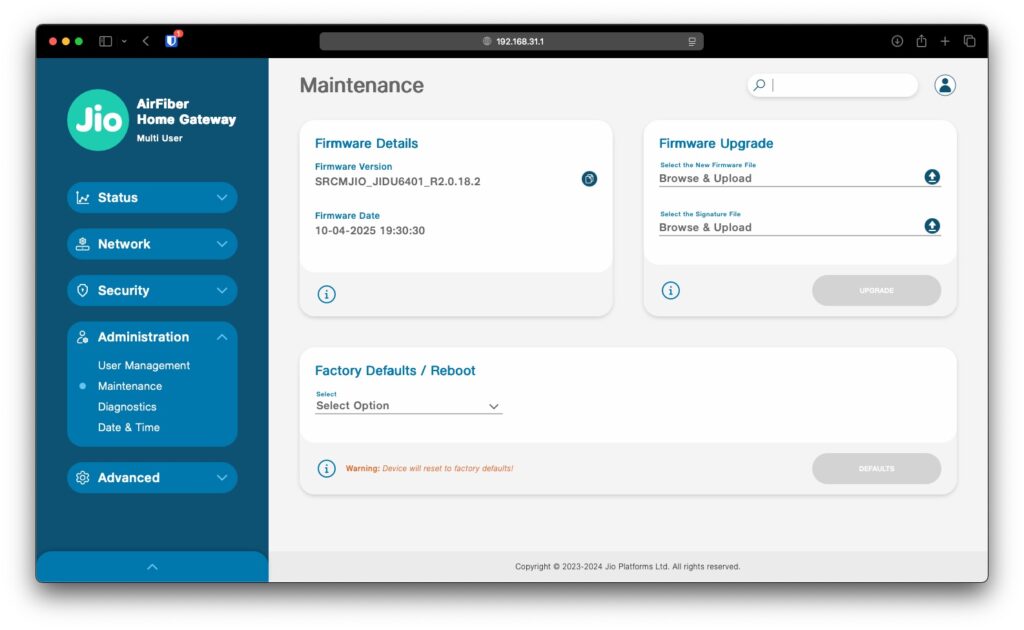
D. Firmware Updates
- Go the Maintenance > Firmware Upgrade and do a check for updates.
Resetting Jio Router to Factory Settings
If you forget your password or if you are experiencing issues, you’ll need to do a factory reset:
- Find the Reset button (usually at the back of the router).
- Afterward, press and hold it with a pin for 10-15 seconds.
- The router will restart (LED lights will flash).
- Re-log in with default credentials.
Note: If you do a reset, all of your settings will be erased.
Security Tips for Jio Router Users
To remain secure and prevent others from taking advantage of your Wi-Fi, here’s what you need to do:
- After you log in, change the default admin password.
- Encrypt with WPA2/WPA3 (not an open network).
- Disable WPS if you don’t actually use it — it’s a popular attack vector.
- Periodically review your router’s list of connected devices.
- When sharing, tap on the guest Wi-Fi option.
- Also, keep your firmware up to date to resolve bugs and enhance performance.
Conclusion
Once you know the right steps, you can easily access the Jio router login page (192.168.29.1 or 192.168.31.1). This manual included how to log in, how to change your password, some troubleshooting procedures, and some advanced configurations.
As always, make sure to update your router’s firmware and use a strong password to protect your network. Contact the Jio Customer Care (198) helpline for further details or mail through the MyJio app.
So, that’s all we have for you about Jio Router Login IP Address & Admin Settings. We hope that this guide has helped you. For more info, comment below.
Enjoyed this article?
If TechLatest has helped you, consider supporting us with a one-time tip on Ko-fi. Every contribution keeps our work free and independent.
Support on Ko-fiDirectly in Your Inbox