Highlights
- Ultimate Windows Tweaker 5 lets you unlock hidden customization options in Windows 11 without needing technical skills.
- It’s a lightweight, portable tool that helps improve performance, privacy, and appearance all in one place.
- With careful use, it can make your Windows 11 experience faster, cleaner, and truly personalized.

If you’ve ever used Windows 11, you’re already familiar with its sleek and polished appearance. Microsoft has done a good job refining the interface, but it’s still not perfect.
Some options are hidden deep in the system, certain features feel forced, and others are completely missing. That’s where a little tool called Ultimate Windows Tweaker 5 steps in from The Windows Club.
Don’t want to miss the best from TechLatest?
Set us as a preferred source in Google Search
and make sure you never miss our latest.
It’s a small, portable program that gives you direct access to hundreds of customization settings that Microsoft doesn’t make easily available. With this tool, you can change how your PC looks, feels, and performs, without typing commands or messing with the registry.
So, let’s check out everything that you need to know about the ultimate Windows tweaker 5 for Windows 11 in this guide.
What is Ultimate Windows Tweaker 5?
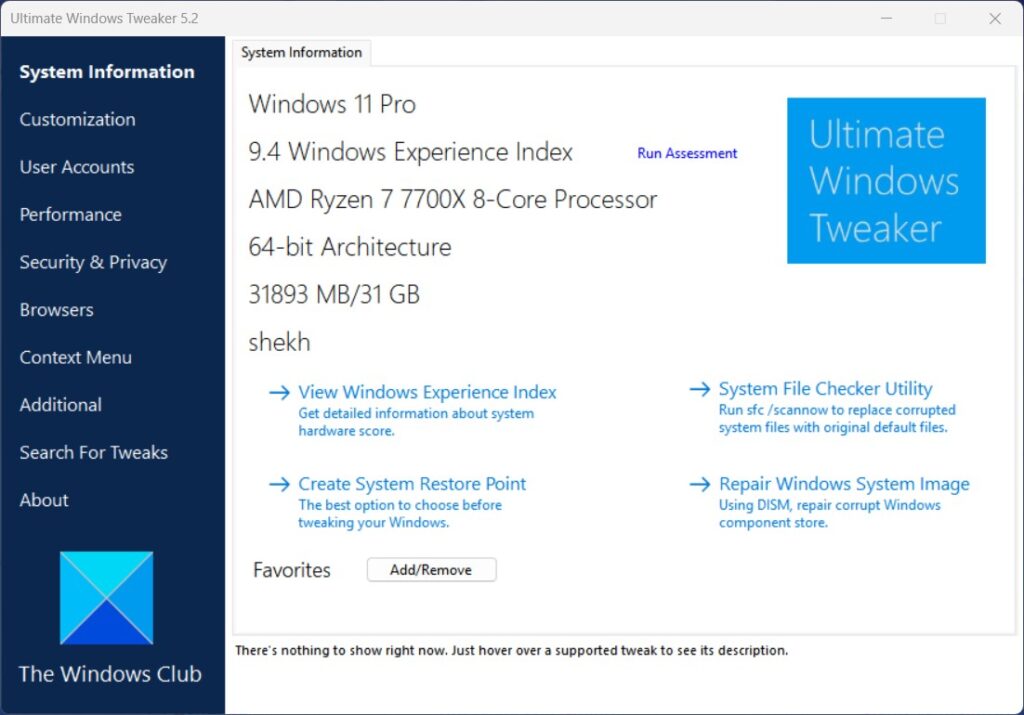
Ultimate Windows Tweaker (UWT) is a lightweight utility developed by The Windows Club, a trusted source for genuine Windows tips and tools. It’s not a new app; previous versions existed for Windows 7, 8, and 10. The latest one, UWT 5, is built specifically for Windows 11.
Unlike most system utilities that install a bunch of unnecessary files, this one is portable. You just download it, extract the ZIP file, and run the .exe, no installation is needed.
It won’t mess with your system files or run background services. It simply gives you one clean dashboard with all the tweaks you’d otherwise have to hunt down in dozens of menus or registry paths.
Why Use Ultimate Windows Tweaker 5 on Windows 11?
Windows 11 is beautiful, but it’s not always flexible. You can’t move the taskbar easily, customize context menus deeply, or change startup behaviors without using complicated settings.
UWT 5 fixes all that. Here’s why you must use Ultimate Windows Tweaker 5 on Windows 11:
- Easy to use: You don’t need technical knowledge. Every option has a clear label and a short description.
- Safe tweaks: It only exposes features that already exist in Windows, so you’re not hacking anything unstable.
- No installation: Runs as a portable program; you can even keep it on a USB drive.
- Hundreds of options: You can tweak performance, privacy, UI, security, and network settings all in one place.
- Instant changes: Most tweaks apply immediately; others take effect after a quick restart.
How to Download and Run Ultimate Windows Tweaker 5
- Go to The Windows Club website. Never download this from random sites to avoid fake versions.
- Download the ZIP file for Ultimate Windows Tweaker 5.
- Extract the folder anywhere on your computer.
- Double-click the file named Ultimate Windows Tweaker 5.exe.
- You’ll see a simple interface divided into sections like System, Personalization, Security, Performance, and more.
Before you start changing settings, it’s a good habit to create a System Restore Point; UWT5 even offers a quick button for it. That way, if something doesn’t go as expected, you can easily revert.
What does it offer in its interface?
When you open UWT5, you’ll notice a clean, tabbed interface. Each tab focuses on a specific set of tweaks. Here’s what each one does in plain language:
1. System Tab
This is where you’ll find general tweaks that impact how your PC behaves.
- Change startup settings and boot options.
- Disable or enable Windows features like Cortana, OneDrive, or Action Center.
- Control system restore and automatic updates.
- Adjust notification and power settings.
These are useful if you want to make your system lighter and more responsive.
2. Personalization Tab
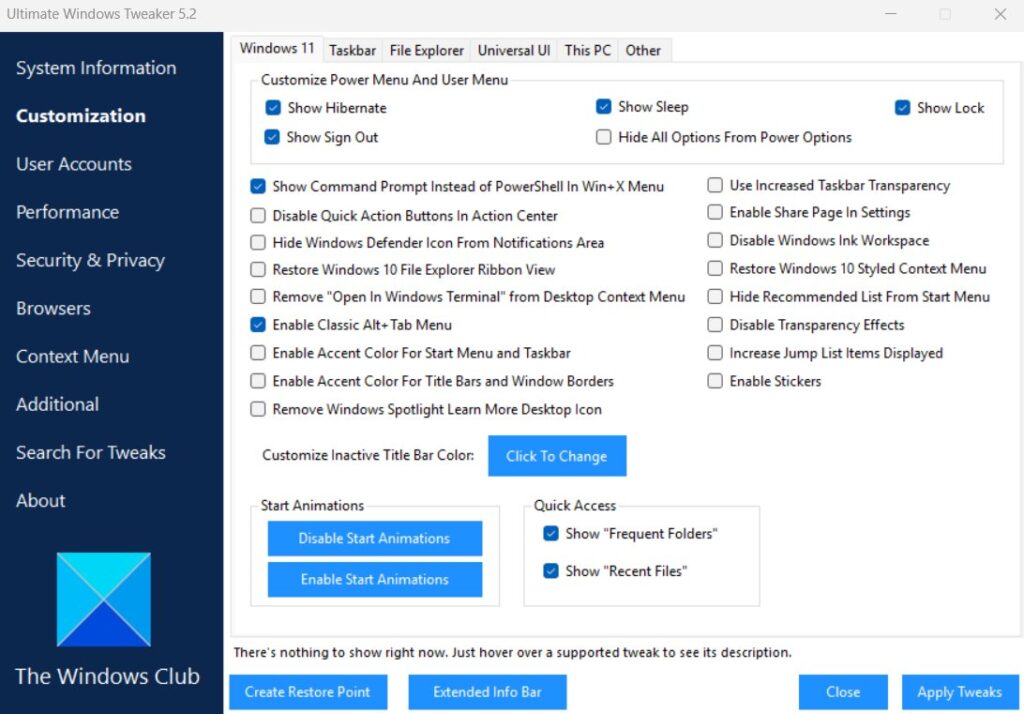
If you like visual customization, this is your section. You can:
- Move the taskbar to the top, bottom, or sides.
- Change the system font and the window border width.
- Enable or disable transparency effects.
- Adjust File Explorer options, like showing file extensions or hidden files.
Windows 11 doesn’t allow much personalization by default, so this part alone makes the tool worth it.
3. User Accounts Tab
This section helps you manage login and user-related options, such as:
- Hiding or showing user accounts on the login screen.
- Enabling automatic login for a specific user.
- Changing how User Account Control (UAC) behaves.
- Turning on or off password expiry and lock screen rules.
These options are handy if you’re setting up a shared or family PC.
4. Performance Tab
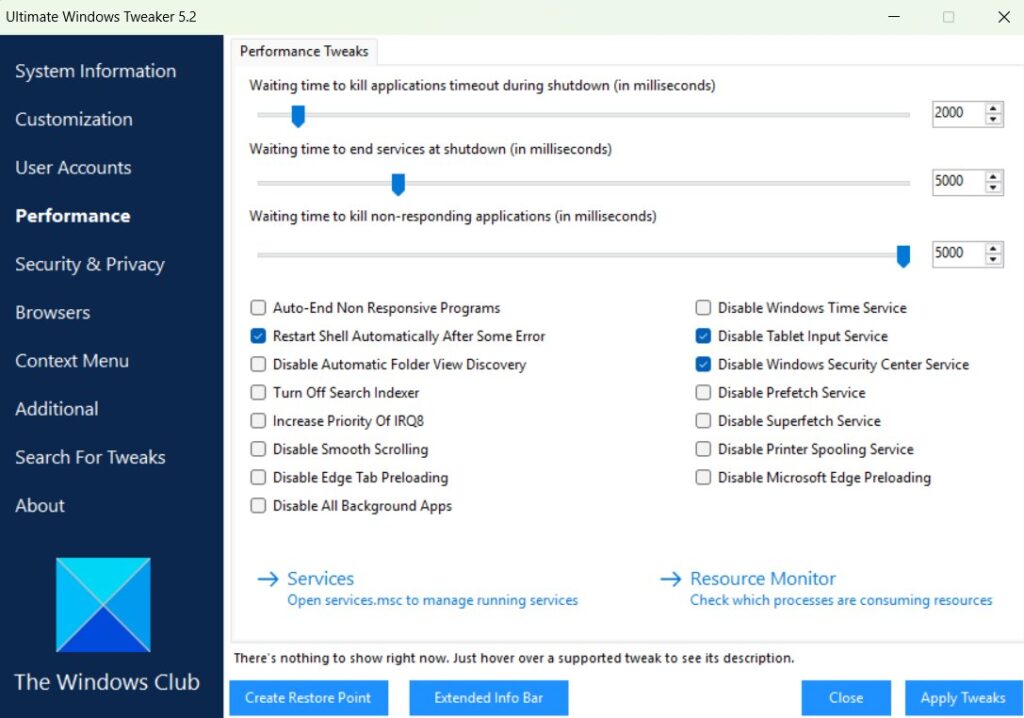
This one’s all about speed. You can:
- Disable animations and visual effects that slow your PC.
- Turn off unnecessary startup programs or background services.
- Adjust CPU scheduling for better multitasking.
- Improve SSD response and reduce boot time.
You’ll immediately feel the difference after applying a few changes here, especially if your system has limited RAM or an older processor.
5. Security & Privacy Tab
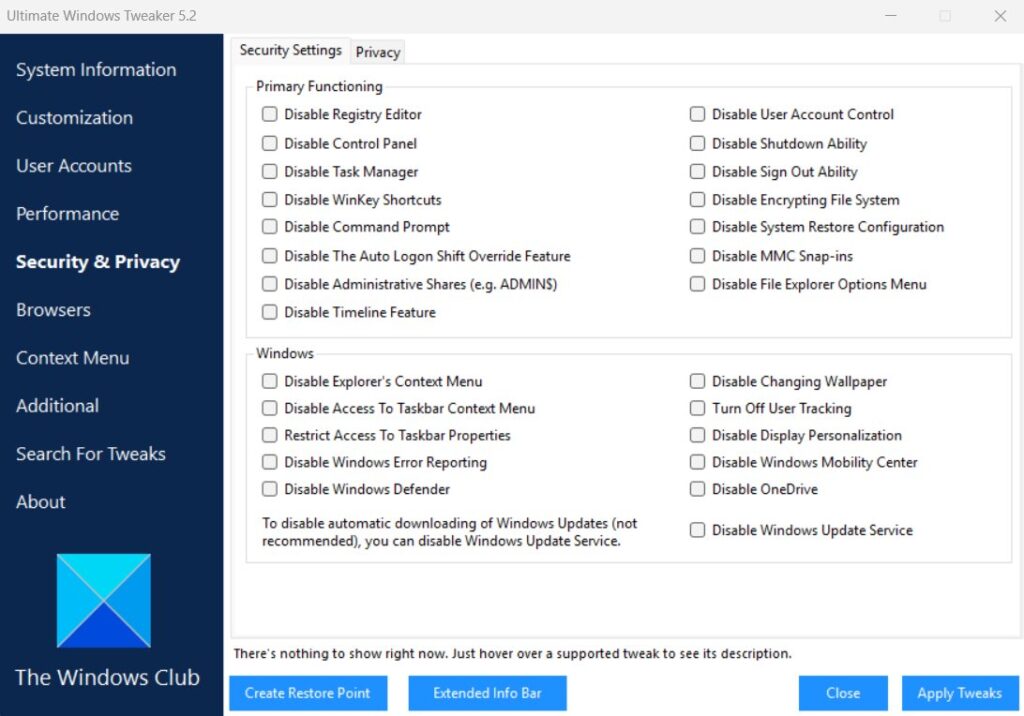
Windows 11 includes many features that collect system and usage data. While not harmful, some users prefer more privacy. Ultimate Windows Tweaker 5 helps you:
- Disable telemetry and tracking services.
- Turn off location access.
- Block ads in Windows apps.
- Restrict background app activity.
- Lock the control panel or specific system settings for other users.
This gives you a cleaner, more private Windows experience without needing third-party privacy tools.
6. Additional Tabs
There are more sections like Context Menu, Search, Edge, and Network, each offering deeper tweaks.
- Context Menu lets you add or remove options that appear when you right-click.
- Edge Tab allows control over browser startup, new tab behavior, and privacy.
- Network Tab lets you optimize bandwidth and DNS settings for better connectivity.
Every option is labeled clearly, so you don’t need to guess what it does.
Useful Tweaks to Try First
If you’re new to tweaking, start with small but effective ones. Here are some user-favorite changes you can make safely:
- Speed Up Windows Startup: Disable startup delay so Windows loads faster after login.
- Turn Off Background Apps: Stop apps from running when you’re not using them to save RAM and battery.
- Add “Open Command Prompt Here” to Context Menu: Makes file navigation faster for developers or power users.
- Disable Telemetry and Data Collection: Helps improve privacy without affecting system performance.
- Adjust Taskbar Size and Position: Make the taskbar smaller or move it to the top for a unique look.
- Show Hidden Files and File Extensions: Perfect for those who work with file types regularly.
Each tweak comes with a short description and can be reversed anytime.
Safety and Stability
Unlike sketchy tweaking apps floating around online, Ultimate Windows Tweaker 5 for Windows 11 is completely safe. It doesn’t change system files in ways that could harm Windows. Instead, it simply modifies registry values, the same things you’d do manually, just with an easier interface.
Still, the golden rule of tweaking applies: make one change at a time and test it. Avoid changing everything at once, especially performance and registry-based options.
Also, always use the Create Restore Point feature before applying major changes. It’s there for a reason, and it takes less than 10 seconds.
What are the common mistakes to avoid?
Even though it’s a safe tool, some users make simple mistakes that cause issues later. Avoid these things while using Ultimate Windows Tweaker 5:
- Tweaking too much too soon. Start slow. Apply one or two changes, reboot, and observe.
- Ignoring restore points. They exist to save you from unexpected side effects.
- Using random registry cleaners. Don’t mix multiple tweaking tools — stick to one.
- Disabling important services. Some background services are needed for stability; research before disabling.
Also Read:
- How to Build Your Own Tiny11 25H2 ISO?
- Windhawk for Windows: The Ultimate Tool to Customize Your PC
- Winpilot (BloatyNosy): Debloat Your Windows 11 PC
Final Thoughts
Ultimate Windows Tweaker 5 for Windows 11 is one of those tools that makes you wonder why Microsoft doesn’t include these options by default. It’s light, fast, and gives you control over areas that are usually locked down.
Whether you want to make Windows 11 run faster, look cleaner, or respect your privacy a bit more, this tiny app can do it all, safely and easily.
So, that’s all we have for you about UWT5. We hope that this guide has helped you. For more info, comment below and let us know.
Enjoyed this article?
If TechLatest has helped you, consider supporting us with a one-time tip on Ko-fi. Every contribution keeps our work free and independent.
Support on Ko-fiDirectly in Your Inbox