There are plenty of things I like about Smart TVs, but typing on them has never been one of them.
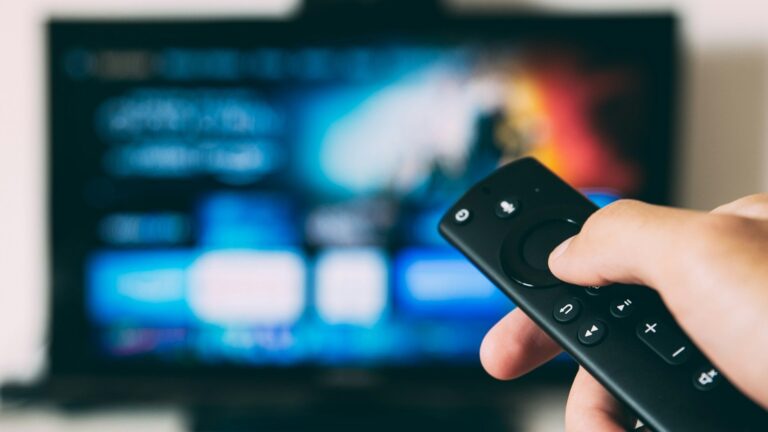
The problem becomes obvious whenever I want to search for something specific. A movie title, a YouTube video, an actor’s name, or even a short phrase can turn into a surprisingly slow process when I’m using the traditional remote.
Don’t want to miss the best from TechLatest?
Set us as a preferred source in Google Search
and make sure you never miss our latest.
That’s when using an iPhone as a TV remote starts making a lot more sense.
The TV remote is great for buttons, not typing
Searching with arrow keys gets old quickly
Traditional TV remotes are designed around navigation. You have directional buttons, volume controls, a home button, and everything else you need for basic TV control.
But typing is different.
If the TV shows an on-screen keyboard, you usually have to move a cursor from one letter to another using the remote. For a short search, that’s manageable. For anything longer, it quickly becomes tedious.
And if I make a typo, I have to go back and correct it using the same tiny controls.
Your iPhone already has a much better keyboard
Type on your phone instead of the TV screen
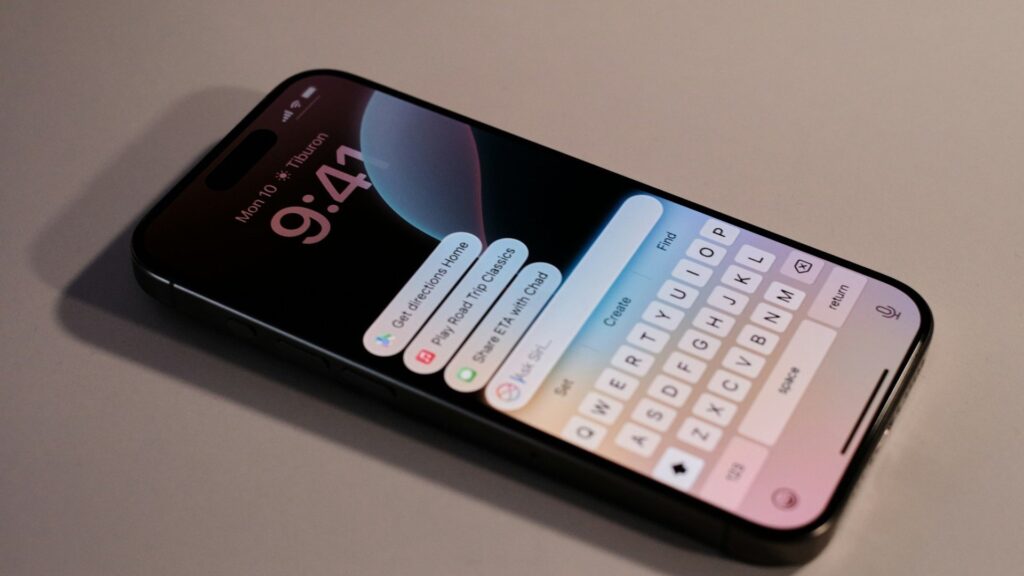
This is where a Smart TV remote app becomes genuinely useful.
With TVRem, your iPhone or iPad can work as a remote while also giving you a much more convenient way to enter text.
Instead of navigating around the TV’s keyboard letter by letter, I can use the keyboard I’m already familiar with on my phone.
It feels like a small change, but it makes one of the most annoying parts of using a Smart TV much less frustrating.
Long searches are much easier
The difference becomes even more noticeable when I’m searching for something with a longer title.
Instead of:
- moving around the on-screen keyboard
- selecting each letter
- correcting mistakes manually
- repeating the process for another search
I can simply type on my iPhone.
It’s especially handy when I already know exactly what I want to watch.
YouTube searches are a good example
Finding a specific video takes fewer steps
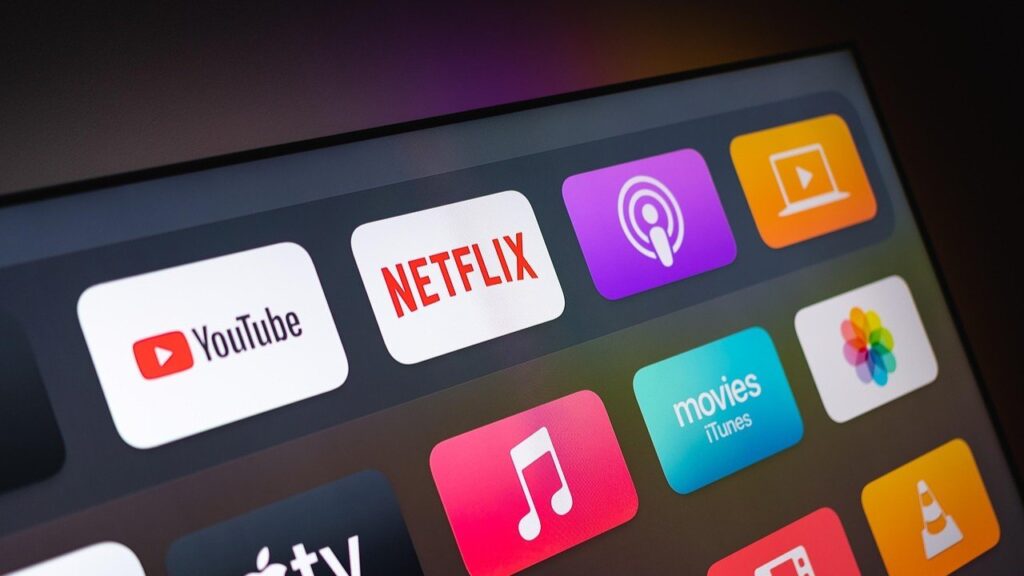
YouTube is probably where I notice the difference the most.
Searching for a particular video, channel, tutorial, song, or creator can involve quite a few characters. Doing all of that with a physical remote isn’t exactly fun.
Using my phone makes the process feel much more natural.
I can open the search field on the TV, use the phone keyboard to enter the query, and then go back to using the remote controls for navigation.
The phone basically handles the part it’s better at, while the TV handles playback.
The keyboard doesn’t replace the remote
You can still use normal TV controls
One thing I like about this setup is that I don’t have to choose between a keyboard and a traditional remote.
TVRem combines different controls in one app.
I can use buttons for changing the volume or navigating menus, switch to the touchpad when that feels easier, and use the keyboard whenever I need to enter text.
So the keyboard is there when I need it, rather than being the only way to interact with the TV.
A small feature that makes a big difference
I wouldn’t have expected a phone keyboard to make such a noticeable difference to the Smart TV experience.
But once you get used to searching from your phone, going back to an on-screen keyboard controlled entirely with arrow buttons feels unnecessarily slow.
For me, that’s one of the most useful reasons to keep a Smart TV remote app with keyboard support on my iPhone.
Enjoyed this article?
If TechLatest has helped you, consider supporting us with a one-time tip on Ko-fi. Every contribution keeps our work free and independent.
Support on Ko-fiDirectly in Your Inbox