Recovery tools tend to make similar promises, and most deliver on photos, contacts, and text messages. For years, recovering Snapchat or Gmail data was almost always impossible. Dr.Fone – Data Recovery (iOS) made this possible, and this review evaluates its real impact. You will learn all about this iPhone data recovery software, including its compatibility and recovery steps.
Part 1: What Is New in Dr.Fone – Data Recovery (iOS)?
Don’t want to miss the best from TechLatest?
Set us as a preferred source in Google Search
and make sure you never miss our latest.
The update adds a small but crucial focus area, changing what the software looks for during a scan. While technically minor, this shift makes a significant difference for anyone trying to recover lost data.
Recovery Support for Snapchat and Gmail
Dr.Fone – Data Recovery (iOS) is the pioneer iPhone data recovery tool to offer support for Snapchat and Gmail data recovery. In practice, both apps now show up as categories you can tick before a scan runs. The software then hunts through your phone’s storage for traces the two apps didn’t fully clear. Whether anything comes back depends on how much of it survived.
Why This Recovery Support Matters
Snapchat and Gmail top the list of lost data requests, but past solutions rarely helped. Directly scanning your phone fills a major gap, offering partial recovery where none existed before.
When to Use an iPhone Recovery Program
An iPhone recovery program makes sense when recently deleted data cannot be restored through free methods and no backup is available. If that’s your situation, using a dedicated recovery tool is your best chance of retrieving the missing data.
Part 2: Why Snapchat and Gmail Recovery Is Different & Challenging
Snapchat and Gmail rely on cloud accounts rather than store everything directly on your iPhone. This heavy reliance on external sync makes lost data recovery much more difficult. Before you further review the details of this iPhone recovery program, go through the given table to know why Snapchat and Gmail recovery is difficult:
| Data Type | Where It’s Stored | Why Recovery Is Difficult | Can Dr.Fone Help? |
|---|---|---|---|
| Snapchat | Temporary local data + Snapchat servers | Content is designed to disappear after viewing or deletion. | Searches for recoverable local traces. |
| Gmail | Google servers + local cache | Deletions sync with Google, removing local cached copies over time. | Scans remaining recoverable device data. |
Part 3: Supported iPhones and iOS Versions
Use this iPhone recovery software with caution, as it works only on a short list of specific data types. Check all 3 points below to confirm eligibility before you pay.
- iPhone 16 and Earlier: iPhone 17 models sit outside the supported range.
- iOS 17.0–18.7.1: Releases from iOS 18.7.2 onwards are not included.
- iOS 26.0–26.0.1: This is a second, separate range rather than a continuation of the first.
Part 4: What Dr.Fone’s Snapchat and Gmail Recovery Feature Offers
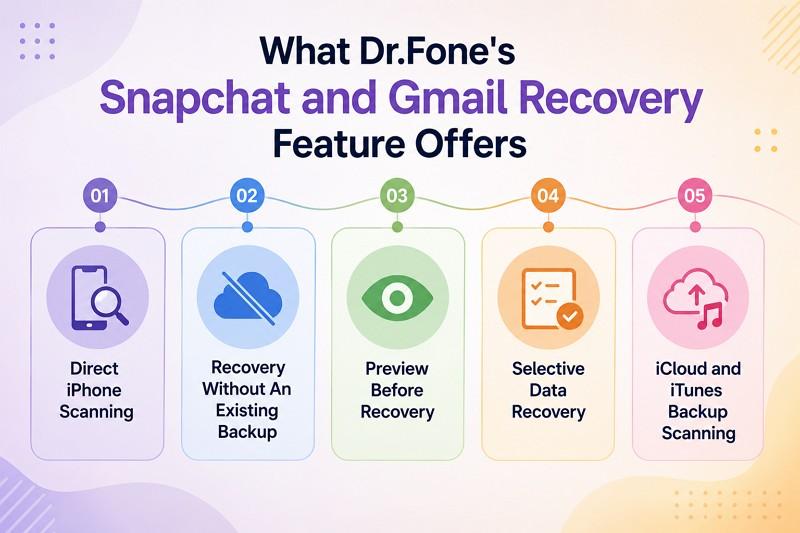
Beyond the main headline, these 5 key features of this iPhone recovery software determine your recovery results:
- Direct iPhone Scanning: This iPhone recovery software reads your phone’s storage rather than working from a copy held somewhere else.
- Recovery Without an Existing Backup: No earlier copy is required, so a scan is still worth running if you never backed the phone up.
- Preview Before Recovery: Findings appear on screen first, so you see what’s there before committing to anything.
- Selective Data Recovery: You choose individual items instead of pulling back everything the scan turned up.
- iCloud and iTunes Backup Scanning: It can also work from a saved backup, pulling data out of the file rather than putting the whole thing back.
Part 5: How to Recover Snapchat and Gmail Data with Dr.Fone
After you are clear with the key aspects, review the following guide for the Dr.Fone iPhone data recovery tool:
Step 1. Access Tool and Recovery Mode
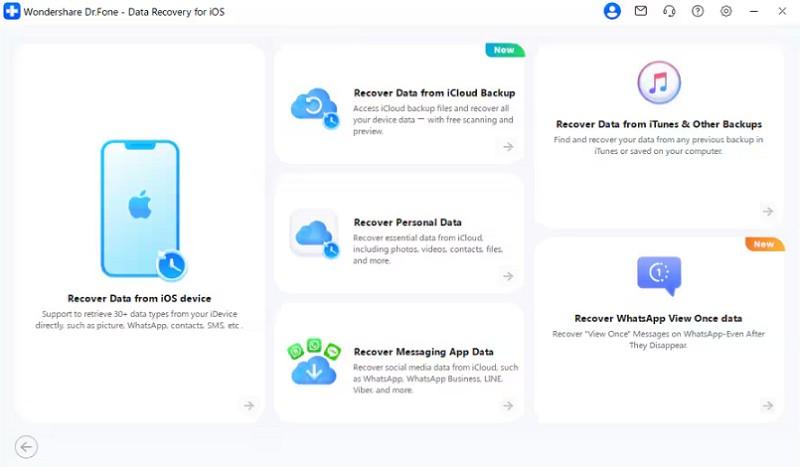
From the “Toolbox” tab of Dr.Fone, pick the “Data Recovery” tool for “iOS” and click on the “Recover Data from iOS Device” feature.
Step 2. Enable the Snapchat and Gmail Options
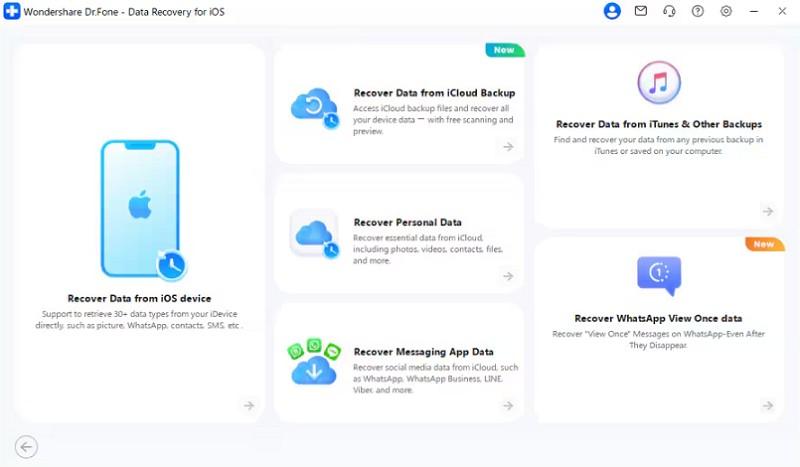
Connect the iDevice when prompted, choose “Snapchat” and “Gmail” among other data types, and click on the “Start Scan” button.
Step 3. Sort Through What It Finds
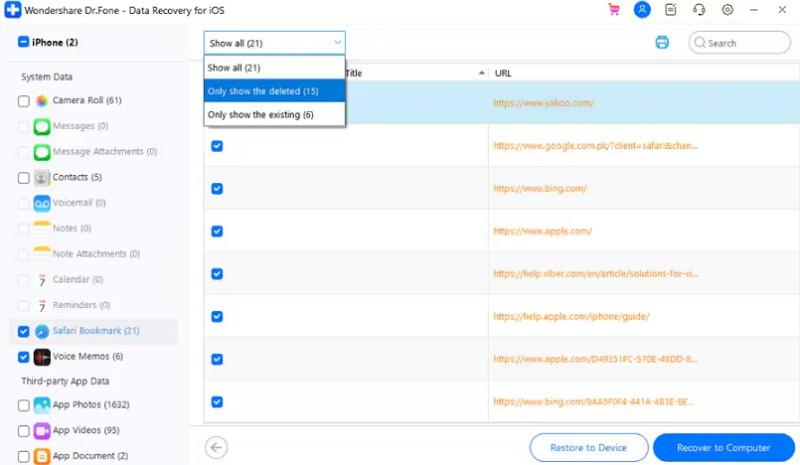
As the read-only scan ends, preview the Snapchat and Gmail data types and press “Restore to Device/Computer” to export.
Part 6: Dr.Fone vs. Traditional Recovery Methods
To further know why this iPhone recovery program outshines other methods, glance at this table:
| What Differs | Traditional Route | Dr.Fone’s Approach |
|---|---|---|
| Direct Device Scan vs Backup-Based Recovery | Depends on an existing iTunes or iCloud backup to recover deleted data. | Scans the iPhone directly and can also analyze iTunes or iCloud backups. |
| Selective Recovery vs Full Backup Restore | Restoring an iTunes or iCloud backup replaces current device data with the backup. | Lets you preview and recover only the items you want without restoring the entire backup. |
| Preview Before Recovery vs Blind Backup Restore | Backup contents usually cannot be reviewed before a full restore. | Displays recoverable items before you choose what to recover. |
Conclusion: Is Dr.Fone Worth Considering?
It is currently the only solution for Snapchat and Gmail recovery, so there is nothing to compare it to. The device scan is key because it checks your phone directly, and previewing results before paying makes trying it risk-free. The supported list is narrow, and a phone outside it gets nothing at all.
Results also hang on how much has been written over since the deletion. A recent loss on a quiet phone is a far better prospect than an old one. Within those limits, iPhone recovery software of this kind is a reasonable thing to try before giving up.
Enjoyed this article?
If TechLatest has helped you, consider supporting us with a one-time tip on Ko-fi. Every contribution keeps our work free and independent.
Support on Ko-fiDirectly in Your Inbox