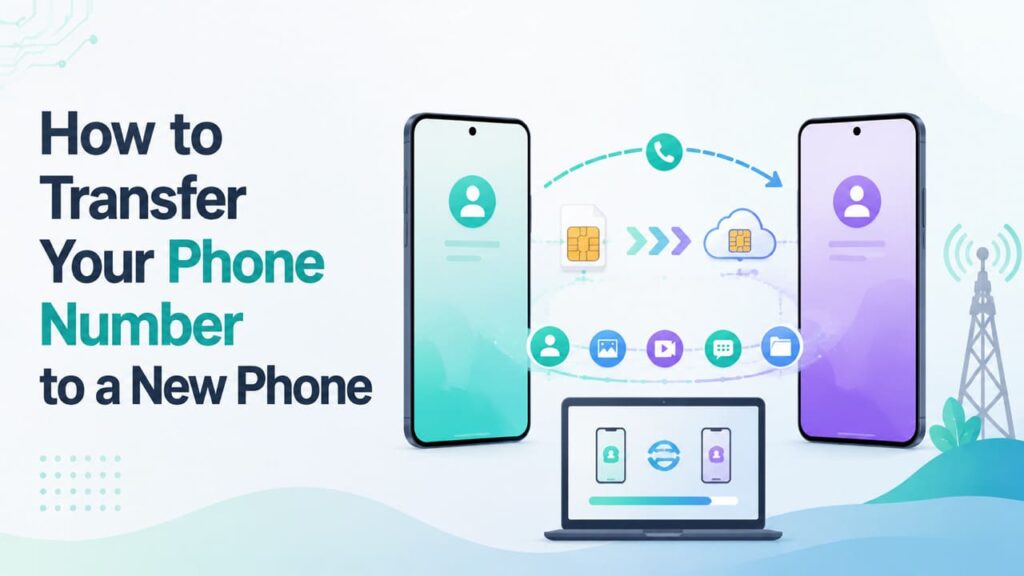
A new phone should make life feel easier, but users worry whether their phone numbers will work on the new device. However, a failed transfer can stop the calls, alerts, and 2FA codes if you don’t know how to move it correctly. Hence, this guide explains how to transfer data to a new phone, including your phone number and contacts.
You will learn how phone numbers and data can be transferred between devices and how to choose the best method for different situations. The guide also explains how Dr.Fone – Phone Transfer offers a faster and more reliable solution than traditional methods for transferring data across platforms.
Don’t want to miss the best from TechLatest?
Set us as a preferred source in Google Search
and make sure you never miss our latest.
Content Table
Part 1. Understanding How Phone Numbers Move Between Devices
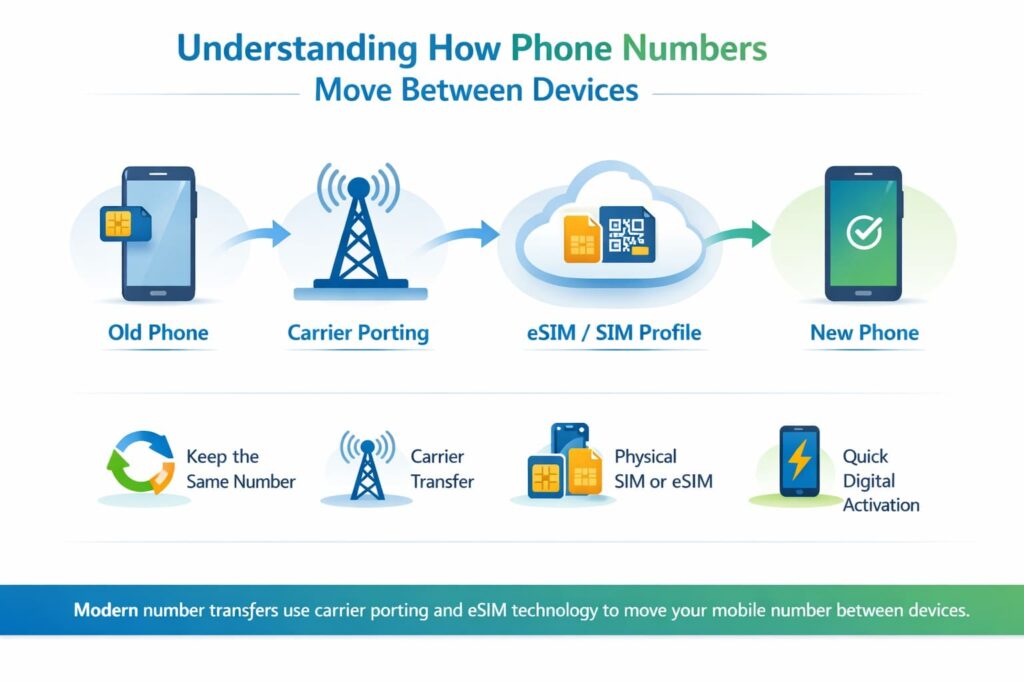
When you change service providers or switch to a new phone, your mobile number is transferred via a background process called carrier porting. AVOXI says that porting is applied to both landline and mobile numbers, so users can keep the same phone number when they switch service providers. In the past, users had to move the numbers via SIM between devices to reassign the network identity.
Read: Why eSIM is the Next Big Thing in Mobile Technology
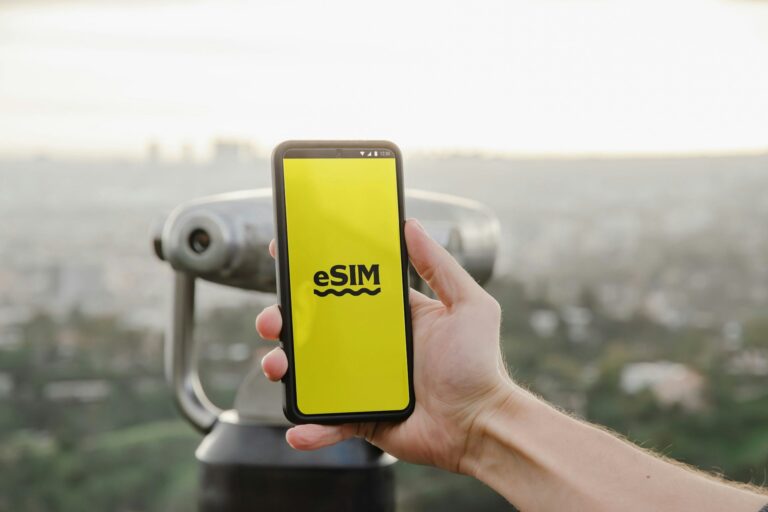
Today, phones use eSIM that lets you download your carrier profile online via QR code or an app. An eSIM stores your network details digitally, rather than on a physical chip. It also reduces the risk of physical SIM theft and lets you switch carriers without waiting for a new physical SIM card.
Part 2. Where DIY Transfer Methods Fall Short
On the quest to know how to transfer data from one phone to another, note that manual methods can fail sometimes. This happens when you move data in bulk or switch between Android and iPhone devices. The reason is that they rely on a stable Wi-Fi connection, and any interruption can stop the process and cause data loss.
This can lead to missing contact files, duplicates, or incomplete contacts with sync errors. Moreover, cross-platform transfers are even more difficult because Android and iPhone use different systems. Hence, contacts and other data may not move correctly or may become corrupted.
Part 3. Choosing the Right Transfer Method for Your Needs
If you wonder how to transfer data to a new phone, this section explores some options. Nonetheless, it’s important that you choose the right option based on your needs and expertise. Thus, review the mentioned table and learn what transfer is suitable to move data, including phone numbers, to a new phone in 2026:
| Method | How It Works | Speed | Reliability | What Transfers |
|---|---|---|---|---|
| Google Backup & Restore | Restores backed-up data after signing in with your Google Account. | Fast | High (if backup is current) | Contacts, photos, apps, settings, and supported messages |
| iCloud Backup & Restore | Restores an iPhone from an iCloud backup during device setup. | Fast | High for iPhone to iPhone | Contacts, photos, apps, settings, and messages |
| SIM / eSIM Transfer | Keep your phone number by moving a SIM card or activating an eSIM on the new phone. | Fast | High | Phone number and carrier service only |
| Bluetooth Transfer | Wirelessly transfers selected files between compatible devices over a Bluetooth connection. | Slow | Medium for small transfers | Contacts, photos, and other supported files |
| Quick Share / AirDrop | Wirelessly transfers selected files between nearby compatible devices. | Fast | High | Photos, videos, documents, and other selected files |
| Move to iOS / Android Switch / Smart Switch | Official migration apps transfer supported data during device setup. | Moderate | High | Contacts, messages, media, supported apps, and settings |
| Transfer Software (Dr.Fone – Phone Transfer) | One-click tool for transferring data between Android and iPhone after moving your SIM or eSIM. | Very Fast | Very High | Contacts, photos, videos, messages, apps, and other supported data |
Important Note: SIM cards can only store 100 to 250 contacts, so large contact lists may not be transferred completely. In addition, Bluetooth transfer does not usually work between Android and iPhone, so it is best used between devices on the same platform.
Part 4. Migrating Everything at Once with Dr.Fone – Phone Switch
Since the basic methods are either platform-specific or storage-constrained, third-party transfer tools are a suitable option. Hence, you can use Dr.Fone – Phone Transfer to transfer data to a new phone and contacts between Android and iOS devices without any loss. Depending on the transfer direction, it supports 12 to 13 data types, making it suitable for both cross-platform and same-platform transfers.
The tool also lets you select only the contacts and other supported data you want to transfer instead of copying everything at once. Its simple interface makes it easy to choose the source and target devices with the Flip button before starting the transfer. Furthermore, it supports Android 16 and the latest iOS 27 for broad compatibility across modern smartphones.
Key Features
- No Factory Reset Required: Unlike Move to iOS, the tool can transfer supported data without requiring a factory reset, so your existing settings and data remain intact.
- Fast Transfer Speed: All transfers are completed in less than 10 minutes, while users can monitor the entire progress.
- Weekly Updates: For all the upcoming Android and iPhone models/versions, Dr.Fone updates weekly to offer the latest transfer solutions.
Guide to Move Phone Data from Android to Android Using Dr.Fone
To know how to transfer phone numbers to a new phone, follow the detailed guide for Dr.Fone and test its transfer claims:
Step 1. Access the Dr.Fone Phone Transfer Tool
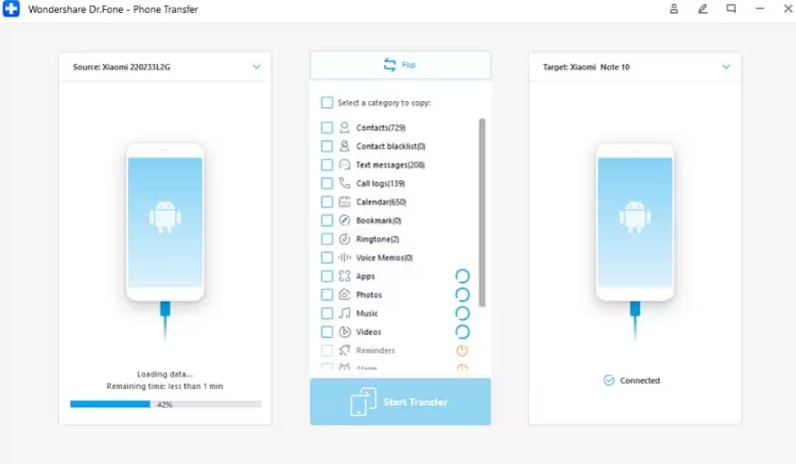
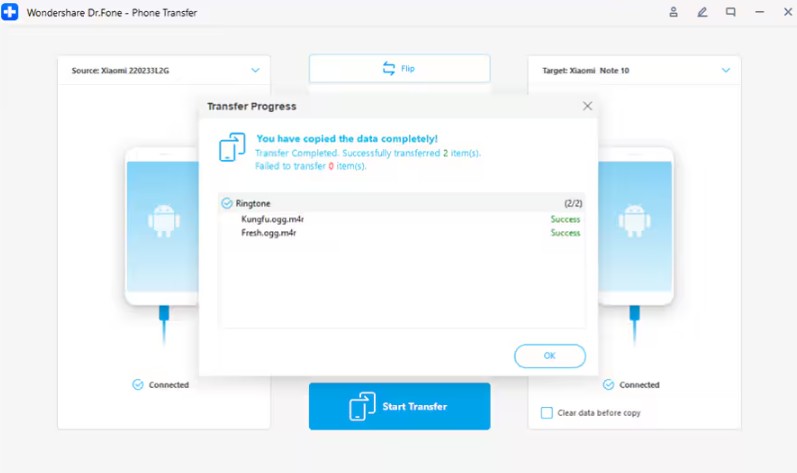
Connect the devices, and in the “Phone Transfer” tool, use the “Flip” icon to select the “Source” and “Target” devices.
Step 2. Complete Your Phone Transfer
Choose “Contacts” and other required data types before pressing the “Start Transfer” button to complete the phone transfer process
Verdict – Your New Phone, Ready to Go
Transferring data to a new phone becomes easier when you choose the right method for your needs. While carrier porting and eSIM activation help move your existing phone number, traditional data transfer methods may have limitations. Dr.Fone – Phone Transfer provides a convenient way to selectively move contacts and other supported data across Android and iPhone devices.
Read: SIM vs. eSIM: Choosing the Right Mobile Connectivity Option
Enjoyed this article?
If TechLatest has helped you, consider supporting us with a one-time tip on Ko-fi. Every contribution keeps our work free and independent.
Support on Ko-fiDirectly in Your Inbox