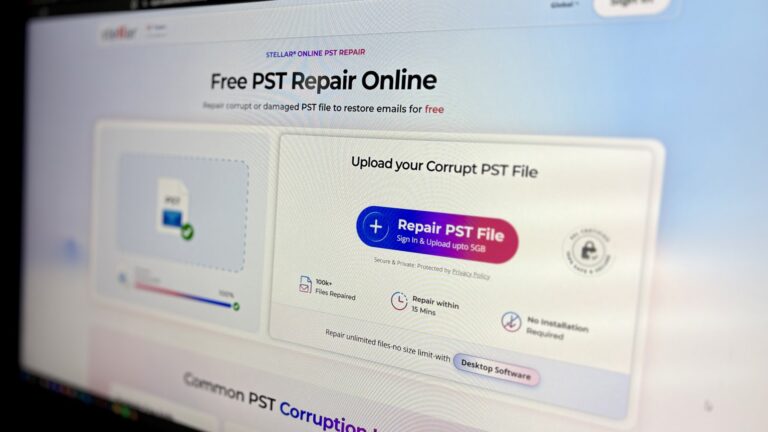
An Outlook PST can become difficult to open after an abrupt shutdown, an Outlook crash, an oversized mailbox, or damage to its internal structure. In that situation, a useful PST repair solution should do more than promise recovery. It should make file selection clear, show whether analysis is progressing, provide a way to inspect recovered items, and save the result without putting the original file at risk.
The desktop application, on the other hand, is better suited to more extensive repair requirements, particularly when dealing with larger or more severely corrupted PST files and when greater control over the recovery and saving process is required.
Don’t want to miss the best from TechLatest?
Set us as a preferred source in Google Search
and make sure you never miss our latest.
Content Table
What I Used for the Test
| Test Item | Details |
|---|---|
| Operating system | Windows 11 Pro, OS Build 26200.8655 |
| Processor | 12th Gen Intel Core i5-1235U, 1.30 GHz |
| Installed RAM | 16 GB (15.7 GB usable) |
| Microsoft Outlook | Microsoft Outlook for Microsoft 365, Version 2608 (Build 20326.20100 Click-to-Run) |
| PST files | Two publicly available sample PST files: 3.17 MB and 100.26 MB |
| Online environment | Chromium-based browser with sign-in completed before uploading the files |
| Data handling | No private emails, contacts, attachments, or business mailbox data were used. |
My First Look – Online PST repair service:
The online service follows a different process. It does not require any software installation or Outlook on the reviewer’s computer, but it does require an account and a PST upload. The current page advertises uploads up to 5 GB, no installation, automated processing, and a preview/download step. I tested this version in the browser with the two public sample files.
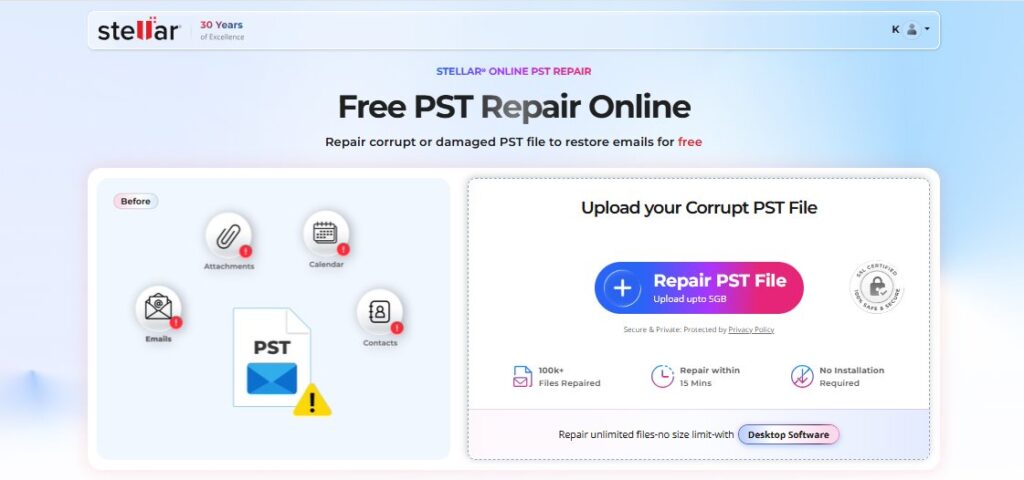
Upload and file-size check
After sign-in, I selected the 3.17 MB file. The service accepted it and displayed the filename and file size before moving to the repair stage. I repeated the workflow with the 100.26 MB file; it was also accepted. Both files were below the free-plan threshold displayed on the page.
Scan, Repair & preview, and Download
After I started the repair, the status changed to “File Uploaded,” then “Repair PST,” and “Analyzing… We are Analyzing the PST File (0%).” The same visible state remained for both files during the test window. No preview tree, recovered message list, download button, or save confirmation appeared. I therefore cannot claim that the online version successfully repaired either sample.
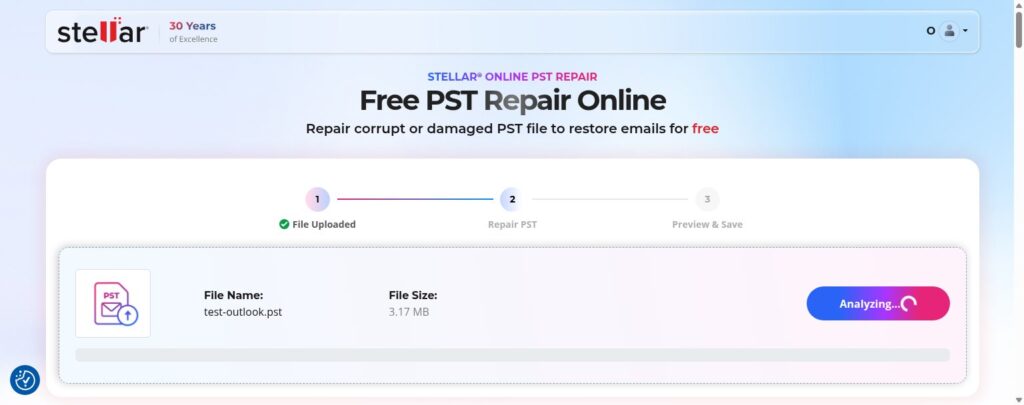
The online repair process is simple and easy to follow. You start by uploading the PST file, and the service takes care of the repair without requiring you to install any application. This can be convenient if you need a quick way to work with a damaged Outlook mailbox.
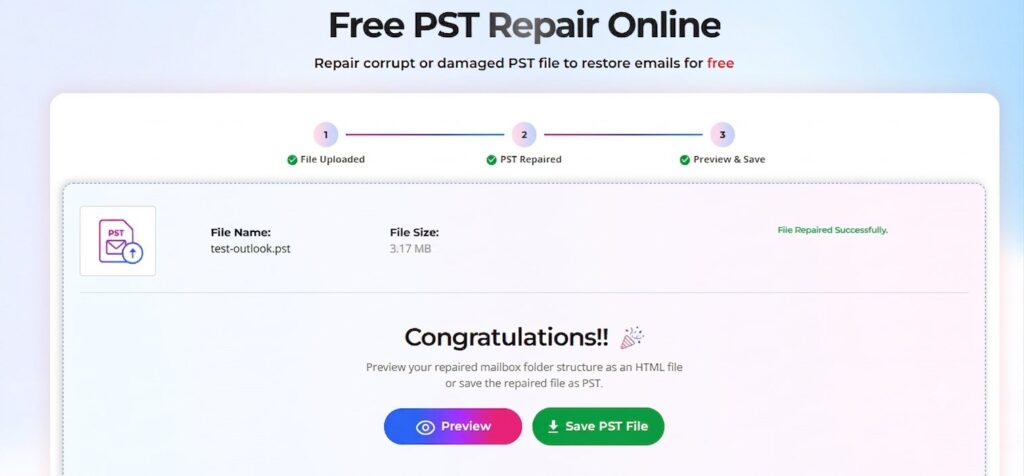
One thing I liked is that the online version supports files up to 5 GB. Once the file is uploaded, the repair process begins, and you can review the recovered mailbox data reviewed before saving it.
The preview option is particularly useful because it gives you a chance to check the recovered emails and other mailbox item counts before downloading the result.
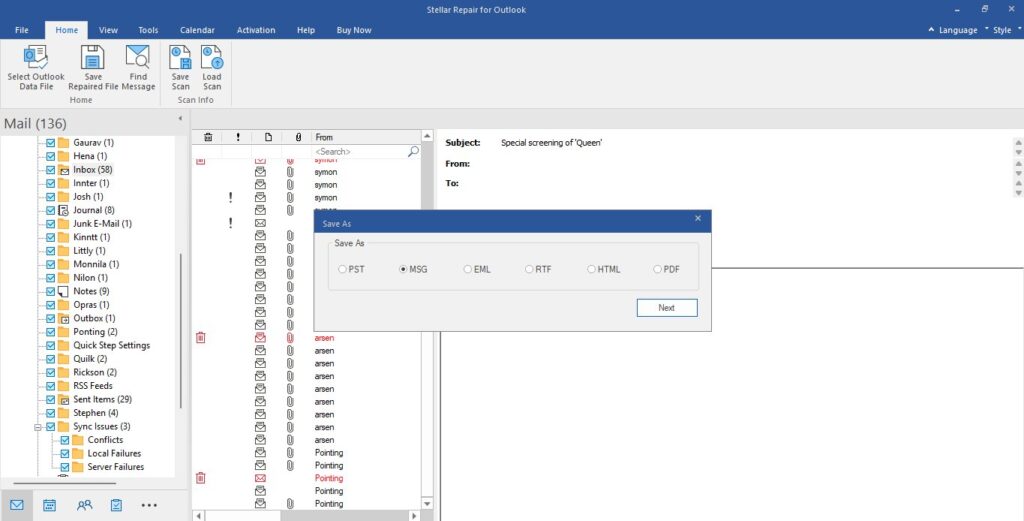
For users who need more control over the recovery process, the desktop version offers additional options. Stellar Repair for Outlook can handle PST files without a file-size limit and lets you preview recovered data, including permanently deleted items, which are highlighted in red for easier identification. You can also save the recovered data in multiple formats, including PST, MSG, EML, HTML, RTF, and PDF. Stellar Repair for Outlook official page.
Overall, Stellar Repair for Outlook provides a straightforward approach to recovering Outlook mailbox data. The combination of PST repair, preview functionality, deleted-item recovery, and multiple saving options makes it a useful choice when dealing with a damaged or inaccessible Outlook PST file.
The desktop product is presented as a local utility rather than a web upload service. On the official page, Stellar says it repairs PST files in read-only mode, preserves the original file, restores mailbox items, and supports Microsoft Outlook 2024, 2021, 2019, 2016, and earlier versions. The product page also advertises that there is no fixed file-size limit.
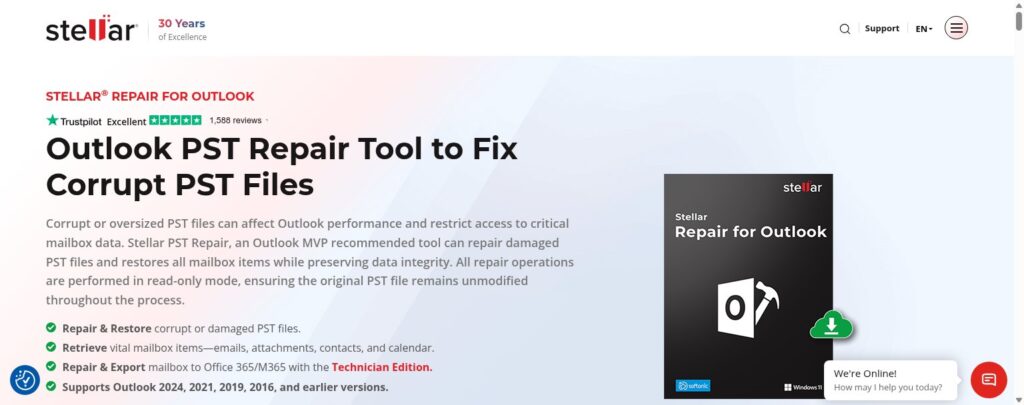
Repairing a PST – Desktop Testing
The desktop steps below explain the process and features that Stellar currently records. I used both versions separately so readers can easily understand each one and use them as needed
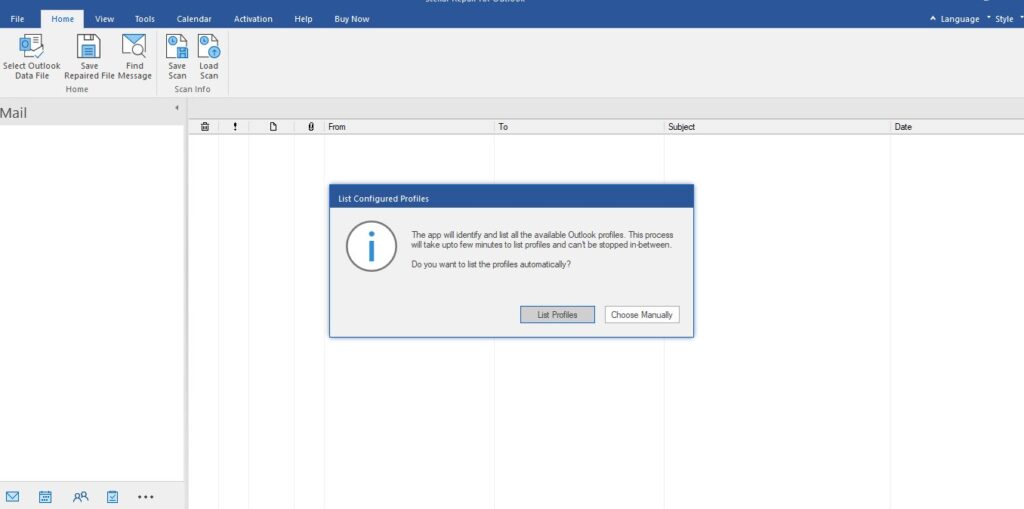
1. Selecting the PST
According to Stellar’s desktop workflow, the user can either list configured profiles or manually select a PST file. The original PST should be copied first, and the copy selected for repair. Stellar presents the desktop process as local and read-only, so the source file should remain untouched.
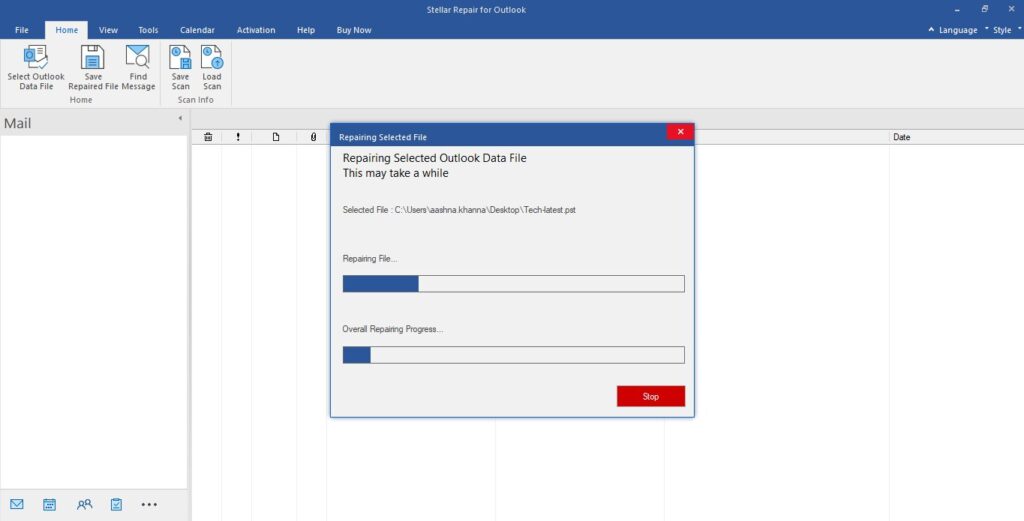
2. Scanning the PST
The tool can repair damaged or encrypted PST files, preserve folder hierarchy, and generate a scan log.
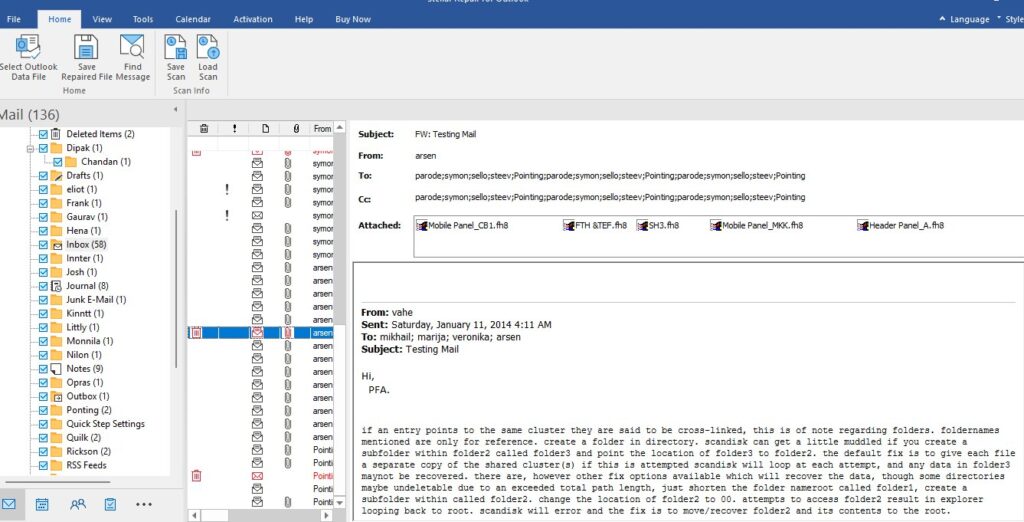
3. Previewing recovered data
It displays mailbox items in a tree-view structure after repair, including email bodies, attachments, contacts, calendars, tasks, notes, and journals. The product page also describes a preview-before-save workflow. I did not verify the item count, message body, attachments, calendar, contact, task, or deleted-item behavior on Windows.
4. Saving or exporting
The published desktop workflow then moves to saving. Stellar describes PST and portable formats such as EML, MSG, RTF, HTML, and PDF; higher editions add further export destinations. These options need to be checked against the edition purchased.
What Happened During the Desktop Repair
I tested the desktop version, focusing on how it handles a large PST file and what you can actually do with the recovered data. One thing that stood out is that the software does not impose a file-size limit on PST files. This is useful if you are dealing with a large Outlook mailbox, especially when the file is too big or damaged to open normally in Outlook.
The repair process itself is fairly straightforward. After selecting the corrupted PST file, the software scans it and starts recovering the mailbox data. Once the scan is complete, I could preview the recovered content before saving anything. This step lets you check whether the emails and other mailbox items you need are actually recoverable.
The preview is also useful for finding deleted data. Permanently deleted items are displayed in red, making them easy to spot among the other recovered emails. You can browse through the mailbox folders and check the available data before deciding what you want to save.
I also liked the flexibility in how the recovered emails can be saved. You are not limited to creating another PST file. Depending on what you need, the software can save recovered emails in formats such as MSG, EML, PDF, HTML, RTF, and PST. For example, if you only need a few important emails, saving them as MSG, EML, or PDF can be more convenient than creating a large PST file.
Overall, the desktop repair process follows a logical workflow: select the PST, scan it, preview the recovered data, check deleted items, and save the required emails in your preferred format. The preview and multiple export options are especially helpful because you can verify the recovery before deciding what to save.
Desktop vs. Online – Which Worked Better for Me?
The two products should not be judged as if they were the same tool. The online version moves the PST to a remote service and is limited by its plan and processing queue. The desktop version is designed to work locally and offers a broader recovery workflow, but it requires Windows installation and edition selection.
| Area | Desktop version | Online version |
|---|---|---|
| Processing method | Local Windows application, according to Stellar’s product information. | PST uploaded to Stellar’s online service. |
| File-size information | The product page does not state a fixed file-size limit. | Free plan up to 500 MB; Premium up to 5 GB per file. |
| Preview and saving | Desktop preview and multi-format save workflow documented by Stellar; not independently run here. | Preview the Mailbox folder structure and download the corrupted PST file. |
| Pricing observed | Professional $79, Technician $149, Toolkit $199. | Free $0 or Premium $29.99 per file. |
| Best use case | Large, sensitive, repeated, or managed mailbox recovery. | Smaller, non-sensitive files when installation is undesirable. |
For a small single PST file, I would try the online PST repair option first, because it has no installation step and a free entry point. For a large or confidential mailbox, I would choose the desktop direction because local processing is a better fit. That is a use-case decision, not a claim that the desktop tool outperformed the online version in my test.
What Worked Well for Me
- The online page made the upload, repair, and preview stages easy to understand.
- Both sample files were accepted, and the online interface displayed their names and sizes before analysis.
- The online plan limits and deletion windows were visible, which made the cost and data-handling model easier to understand.
- The online service required no desktop installation, so the first upload step was quick to start in a browser.
Things to Keep in Mind
- The online version offers a simple way to upload and analyze PST files, with the option to preview and download the recovered mailbox data after processing.
- Since PST files can contain emails, contacts, attachments, and other mailbox information, users should consider their organization’s data privacy and security requirements when using an online service.
- The desktop version provides a dedicated Windows-based environment for PST repair and recovery, making it a practical choice for users who prefer to process their mailbox data locally.
- Feature availability can vary by desktop edition, so users can choose the edition that best matches their requirements, including available export and mailbox management options.
- Pricing and offers may vary by edition and current promotions, so check the latest pricing before purchase.
Pricing – Desktop and Online Clearly Separated
Desktop pricing
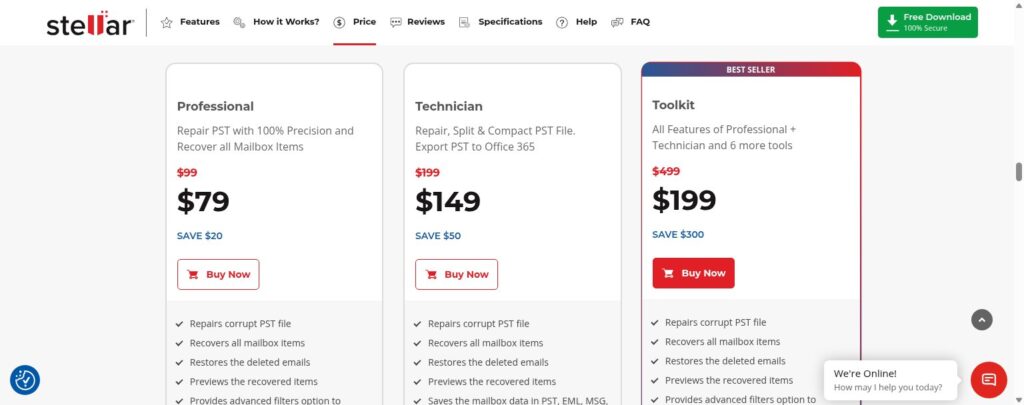
The desktop pricing page showed three editions: Professional at $79, Technician at $149, and Toolkit at $199. Professional is the basic repair and recovery tier. Technician adds capabilities such as Microsoft 365 or Exchange export and split/compact functions. Toolkit adds other Outlook utilities.
Online pricing
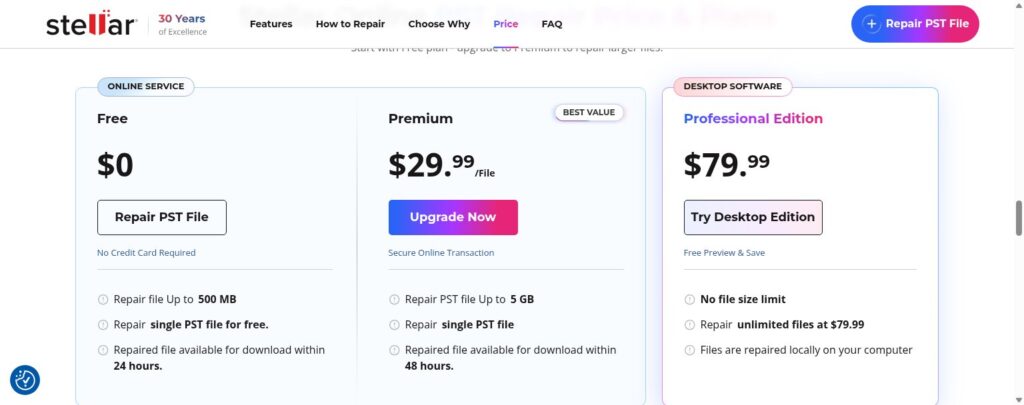
The online pricing page showed a Free plan at $0 for one PST up to 500 MB and a Premium plan at $29.99 per file for one PST up to 5 GB. The page also displayed a separate desktop offer at $79.99; that card is not an online plan and should not be confused with the desktop pricing screenshot above.
These prices are a snapshot from the review date. Promotions, taxes, currency, region, and checkout timing can change the final amount.
Who I Think Should Use It
Someone dealing with an Outlook PST that will not open normally may find Stellar worth evaluating if they want a preview-before-save workflow. The desktop version is the better fit for large files, sensitive data, repeated repair work, and users who need local processing or broader export options. The online version is more suitable for smaller, non-sensitive files when the user wants to avoid installing software and accepts the upload model.
My Final Verdict
My result: I confirmed that the online service accepted both public sample PST files and displayed its analysis stage, but neither test reached preview or download. I did not run the Windows desktop application, so I cannot claim that either product successfully repaired a corrupt PST in this review.
For a sensitive or large mailbox, I would choose the desktop version based on its local-processing use case. For a smaller, non-sensitive file, I would consider the online version, but only after confirming that processing completes on a copy.
This is a cautious recommendation because the most important recovery steps still require a proper Windows run and a completed online job. Anyone relying on a critical mailbox should keep the original PST untouched, test a duplicate, inspect the recovered folders and messages, and open the saved output before treating the repair as complete.
FAQs
Is Stellar Repair for Outlook safe?
The desktop product is described as local and read-only. The online version requires a PST upload, so users should review the current privacy and deletion terms and confirm that cloud processing is acceptable for their mailbox.
What Outlook versions does the desktop product support?
Stellar’s current desktop page lists Outlook 2024, 2021, 2019, 2016, and earlier versions. Compatibility should be confirmed for the exact Office build before installation.
What PST sizes can the products repair?
The online page lists up to 500 MB on the Free plan and up to 5 GB on the premium plan. The desktop product page does not state a fixed size limit. Confirm the current edition details before purchase.
Is there an online version?
Yes. Stellar provides a separate browser-based PST repair service in addition to the desktop application.
How much does it cost?
At the time of review, online pricing was $0 up to 500 MB or $29.99 per file up to 5 GB. Desktop pricing was $79 for Professional, $149 for Technician, and $199 for Toolkit. Prices may change, and the online page showed a separate $79.99 desktop card.
Enjoyed this article?
If TechLatest has helped you, consider supporting us with a one-time tip on Ko-fi. Every contribution keeps our work free and independent.
Support on Ko-fiDirectly in Your Inbox